Website, booking and Get found
Northfork Trades builds your business website from what you already entered: your services, prices, towns and reviews. Customers book from it. Get found walks you through Google, Facebook and Nextdoor.
Your business website
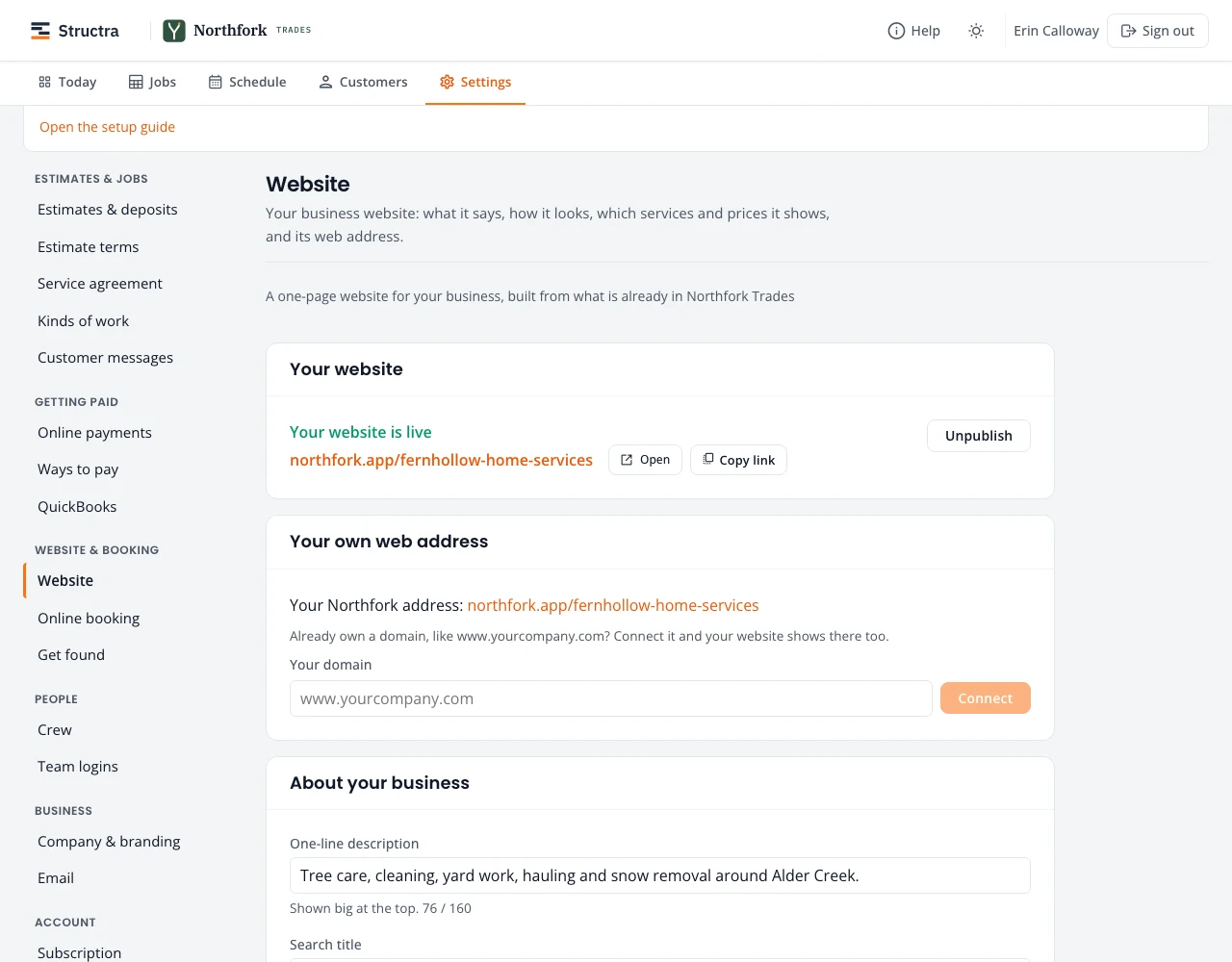
Open Settings, Website. Your site lives at northfork.app/your-business-name. The top of the page says whether it is live, with Open, Copy link and Unpublish. It goes live when you finish the setup guide, as soon as it has a one-line description and at least one town.
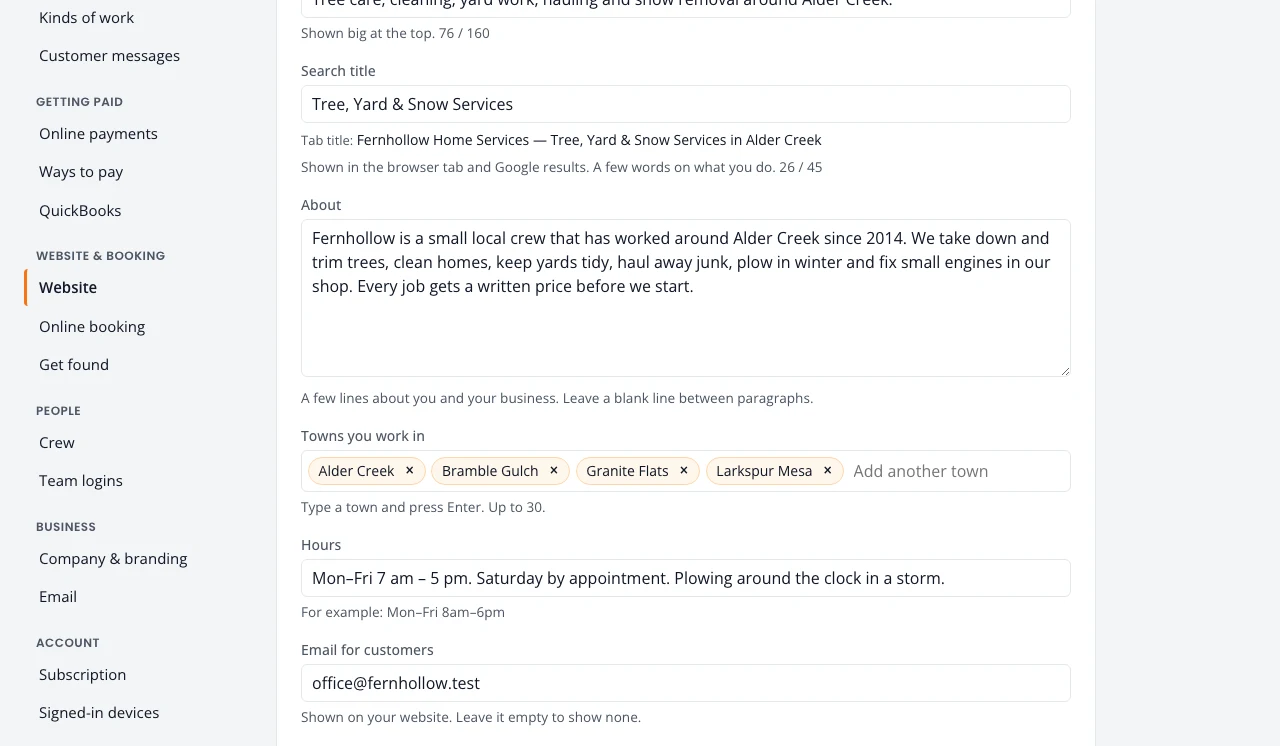
What it says, and the search title
- One-line description: shown big at the top.
- Search title: a few words on what you do, shown in the browser tab and in Google results. Your main town is added for you, so “Tree, Yard & Snow Services” reads “Tree, Yard & Snow Services in Alder Creek”. Keep it under the 45 characters the box allows.
- About, Towns you work in (up to 30), Hours and an email for customers.
- Licensed and insured shows only after you tick I confirm this is true.
- Look: Classic or Friendly. Your logo and colors come from Company & branding.
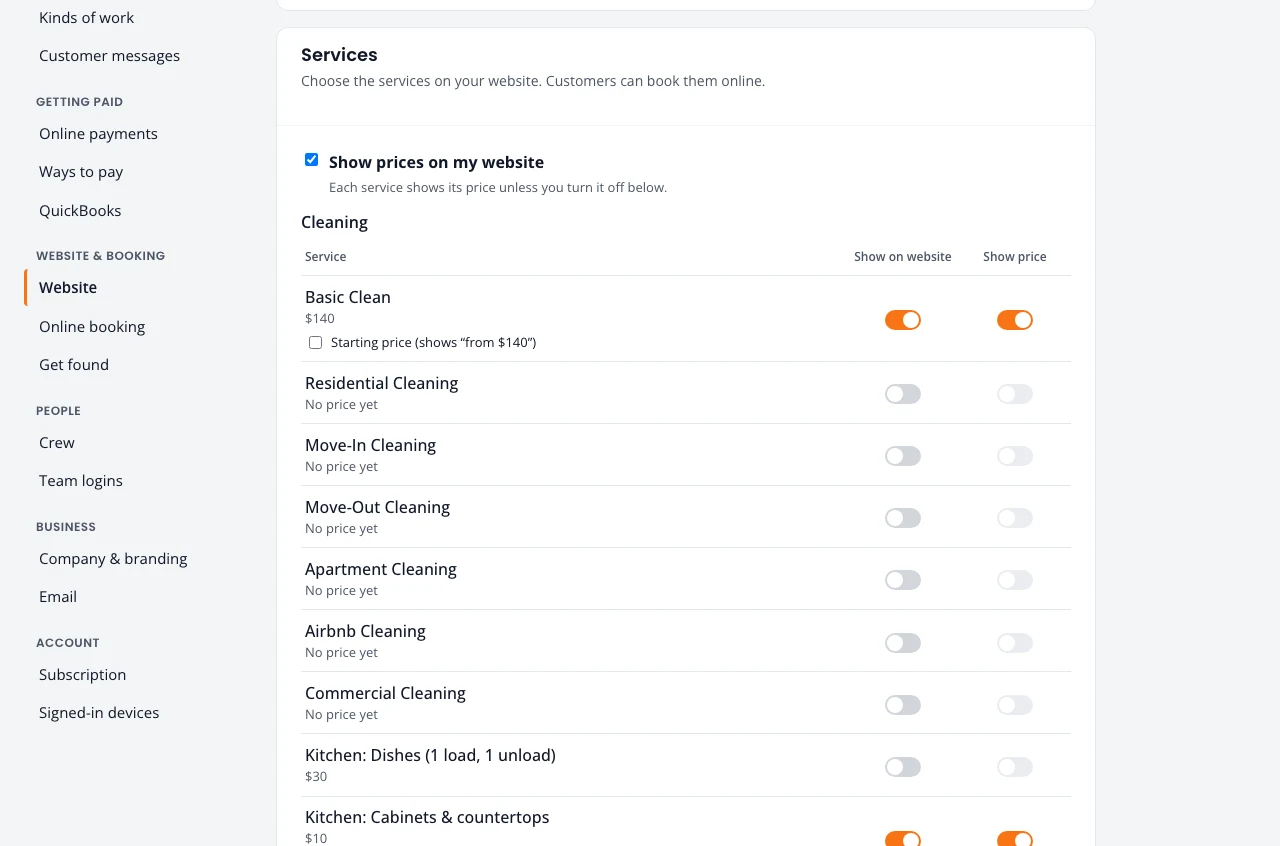
Choose the services it shows
Under Services, each service from your price list has two switches: Show on website and Show price. Show prices on my website turns all prices on or off. A service with a price that depends on the job can show as a starting price (“From $140”). Every service shown on the website can be booked online.
With Visit first under Settings, Online booking (the setting every company starts with), every price on your website reads as a starting price (“From $140”) and the buttons say Request a visit. With Book the work, prices show as you set them and the button says Book online. See Online booking.
Verified reviews show on the site with Show reviews on my website. Hide a single review from its job page.
Your own web address
Already own a domain, like www.yourcompany.com? Type it under Your domain and press Connect, then add the record it shows where you bought the domain. Your own domain comes with the Crew and Company plans.
Online booking
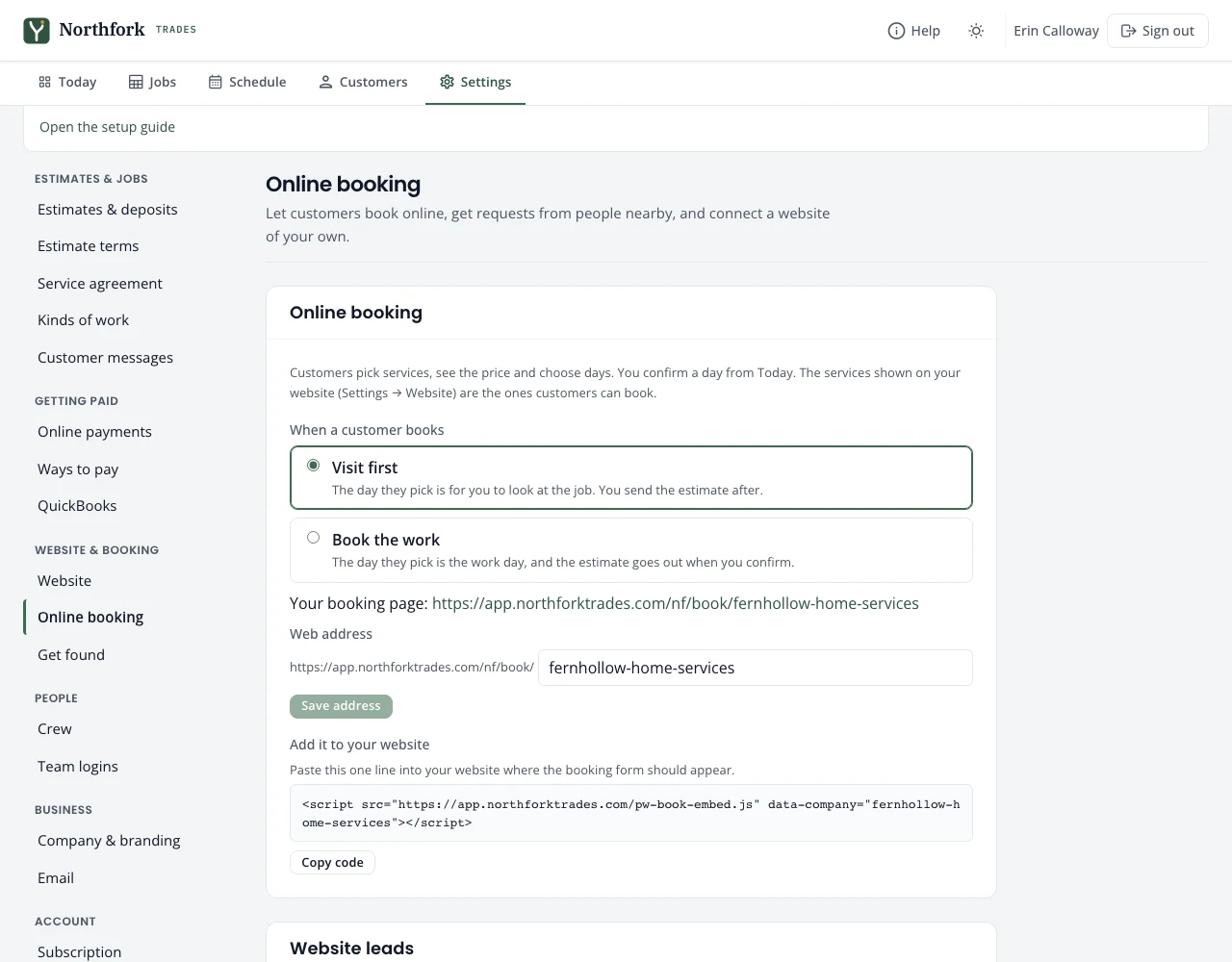
Settings, Online booking has:
- When a customer books: Visit first (the day they pick is for you to look at the job; you send the estimate after) or Book the work (the day they pick is the work day, and the estimate goes out when you confirm). Every company starts on Visit first. It saves as soon as you pick one.
- Your booking page link to share or put on your Google profile, and a web address you can change.
- Add it to your website: a line of code that puts a booking button on a website of your own.
- Website leads: keys for a website of your own to send its request form to Northfork Trades.
- Prices on a website of your own: keys that let your own site read your services and prices (they can only read prices, never customers or jobs).
What customers see and how you confirm a booking: Online bookings.
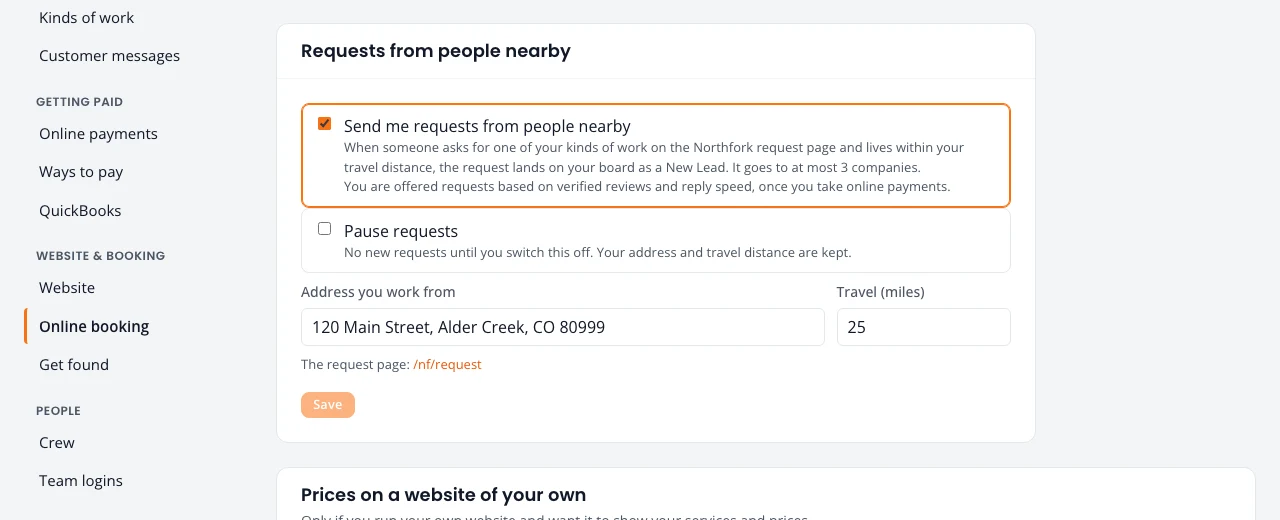
Requests from people nearby
- Tick Send me requests from people nearby.
- Enter the Address you work from and your Travel (miles).
- Save.
Pause requests stops new requests until you switch it off, keeping your address and distance. Each request goes to at most three companies; you are offered requests once you take online payments. How they are shared, and what a won lead costs: Open requests.
Get found
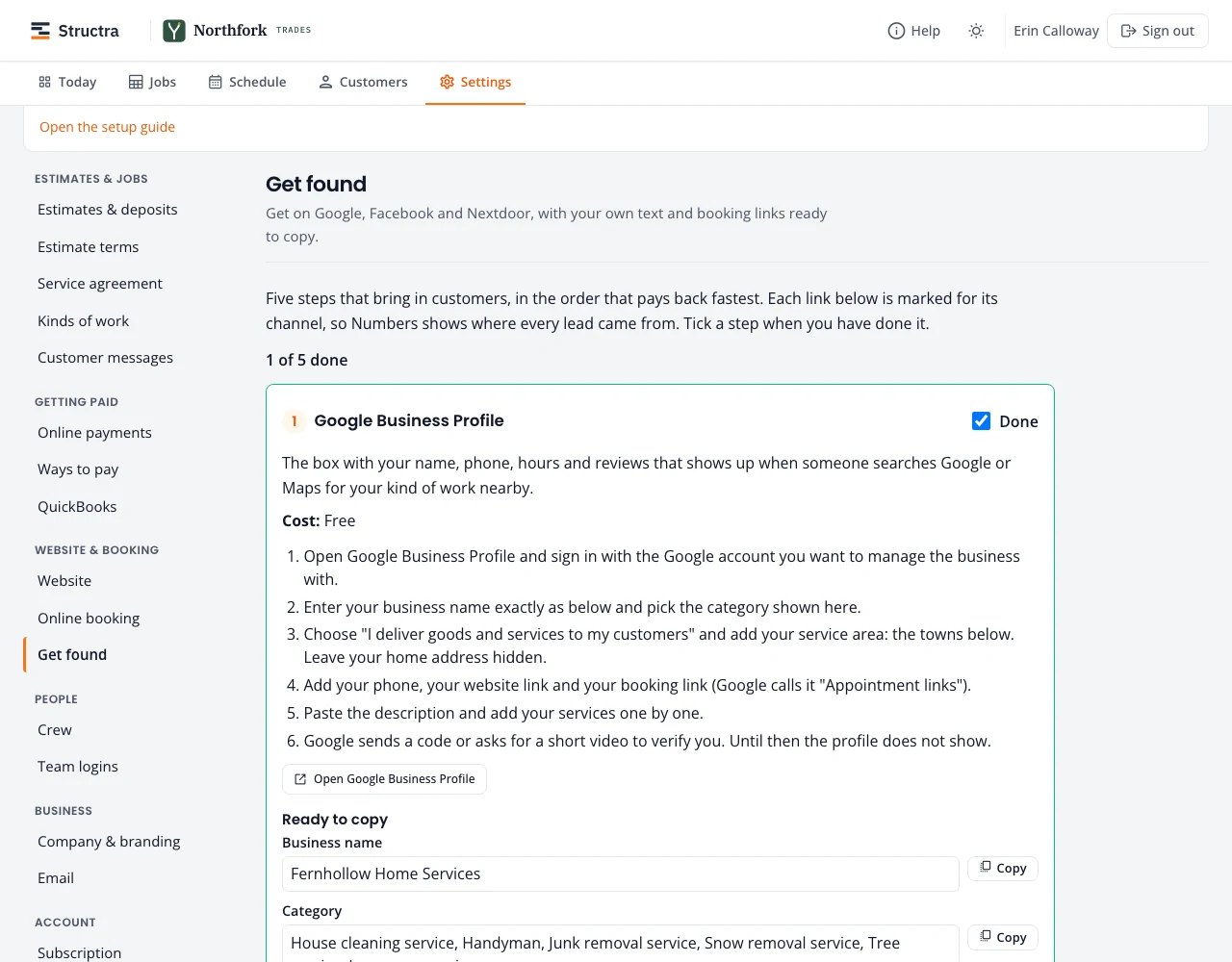
Five steps that bring in customers, in the order that pays back fastest. Each step has short instructions, a button to open the site, and your own text ready to copy: business name, category, phone, towns, hours, description, services, and website and booking links.
- Google Business Profile (free): the box with your name, phone, hours and reviews on Google Search and Maps.
- Ask for reviews (free): switch on review requests and paste your Google review link.
- Facebook page (free), with a Book now button pointing at your booking page.
- Nextdoor (free): claim or create your business page.
- Google Ads (paid): you set a daily budget. Do the free steps first.
Tick a step when you have done it. The links are tagged, so Numbers shows which one each lead came from.
Stuck on something? Email support@northforktrades.com and tell us what you were trying to do.