Sign up and sign in
Start a free trial, pick the kinds of work you do, and sign in with a code sent to your email. No password to remember.
Start a free trial
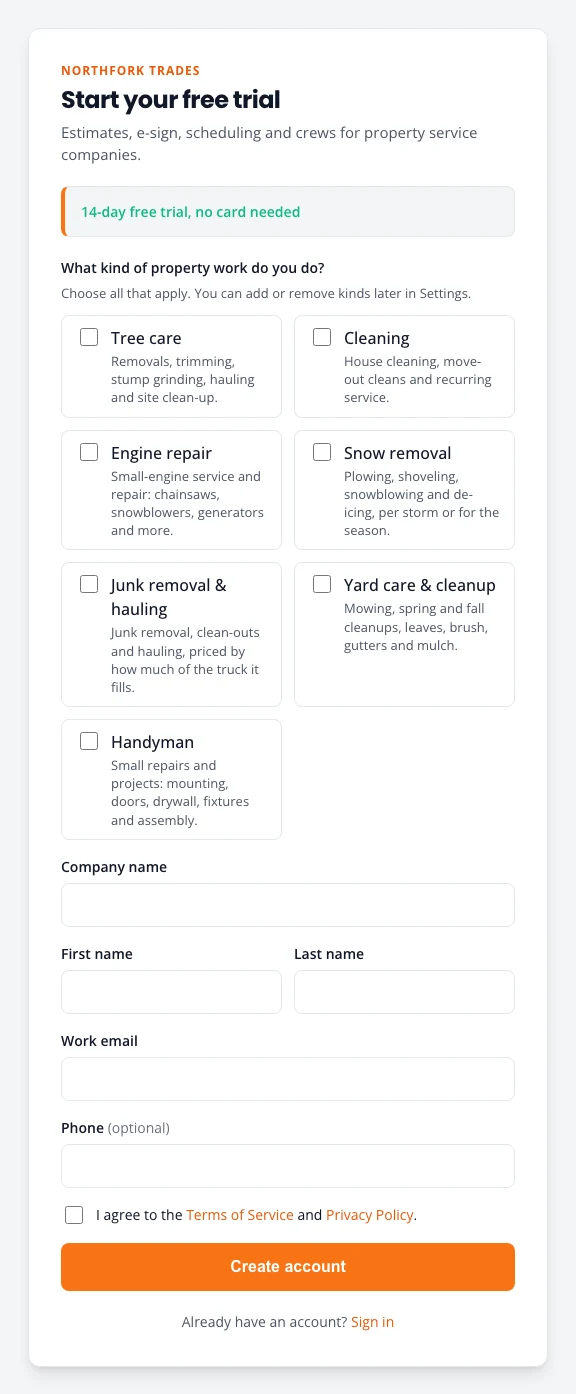
- Go to the Northfork Trades sign-up page. Fill in your company name, your name and your work email. Your phone is optional.
- Tick each kind of work you do (more on that below).
- Press Create account. We email you a link.
- Open the email and press Create my account. You land on Today, with the setup guide waiting.
We set up your account for you
Sometimes the Northfork team sets up a company for you before you sign up: your company name, your towns, your kinds of work with starter prices, and a website. You get an email from Northfork with two buttons: Claim my account and See my website. Often it also says a customer near you is waiting for your kind of work.
- Press See my website to look first, if you like. Only people with the link can see it, and it is not on Google.
- Press Claim my account. The page shows your company, your email and, if there is one, the customer waiting, marked Free: your first Northfork customer.
- Leave Publish my website now ticked to put your website live, or untick it to keep it private for now.
- Tick that you agree to the Terms of Service and Privacy Policy, then press Claim my account.
You are signed in and land on Follow up. The waiting customer is on your list as a new lead, marked Free: your first Northfork customer there and on the job page. You never pay for that customer, even if you win the job.
From then on the account is yours, like any other. Your free trial starts the day you claim it. Next time, sign in with a code as described below. There is no password.
Make it yours
- Check the starter prices before you quote, under Settings, Prices. See Prices, products and dump sites.
- Change anything on your website, or publish it later, under Settings, Website. See Website, booking and Get found.
- Work through the setup guide when you have a few minutes.
Pick your kinds of work
Tick every kind of work you do; you can add or remove them later.
- Tree care: removals, trimming, stump grinding, hauling.
- Cleaning: house cleans, move-outs, recurring service.
- Snow removal: plowing, shoveling, per storm or by the season.
- Junk removal & hauling: priced by how much of the truck it fills.
- Yard care & cleanup: mowing, cleanups, leaves, gutters, mulch.
- Handyman: small repairs and projects.
- Holiday lighting: design, install, takedown and storage of holiday lights.
- Engine repair: chainsaws, mowers, snowblowers, generators.
Each kind brings a starter price list with suggested prices, the questions its estimates ask, and its own job number prefix (TS for tree care, CL for cleaning, and so on). Check the prices before you quote.
Sign in
Owners and staff sign in with a one-time code. There is no password.
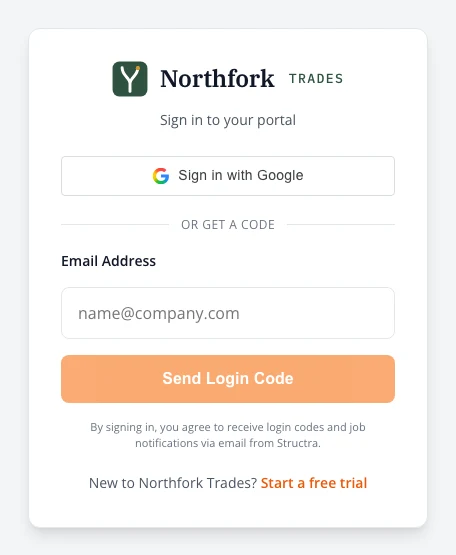
- Open Northfork Trades and type your email.
- Press Send Login Code. A six-digit code arrives by email in a few seconds.
- Type the code and press Verify Code.
If your email is a Google account, Sign in with Google works too. Each device stays signed in, so you only do this once per phone or computer. You can see and sign out devices under Signed-in devices.
Use it on your phone
Northfork Trades works on any phone. It is the same account and the same jobs as on a computer.
- Android: get the Northfork Trades app on Google Play. Open it and sign in with your email code or Google, as above.
- iPhone: there is no iPhone app. Open Northfork Trades in Safari, press Share, then Add to Home Screen. It opens like an app.
On a phone the five tabs move to a bar along the bottom of the screen.
Photos and notes taken with no signal are kept on the phone and sent when it reconnects. See Finding your way.
What to do next
Work through the setup guide. It has ten steps; five are required and the rest can wait. Most owners finish it in under half an hour.
Stuck on something? Email support@northforktrades.com and tell us what you were trying to do.