Schedule and crew
Give a signed job a date and a crew, see the week, check who has room, and run the day from a phone.
Put a job on the calendar
- Open the job (from Today’s To do, or Jobs under Booking) and press Schedule.
- Set the start date and time, and the end if you know it. Times are in your company’s time zone.
- Add notes for the crew, such as a gate code. Save.
The job moves to Scheduled by itself. A job still waiting for its deposit offers Request deposit first, or Schedule anyway. To move it later, press Reschedule.
Assign crew
Press Assign crew on the job page. Press Assign beside each person going, and Make lead beside the person in charge. You can line up the crew before or after the date.
A crew member marked as a contractor (1099) gets a crew contract to sign for each job. Employees (W-2) do not. See Crew and team logins.
See your week
Open Schedule. List shows the week day by day; Calendar shows a week or month grid. Use Previous, This week and Next to move around. Times show in your company’s time zone.
Crew capacity
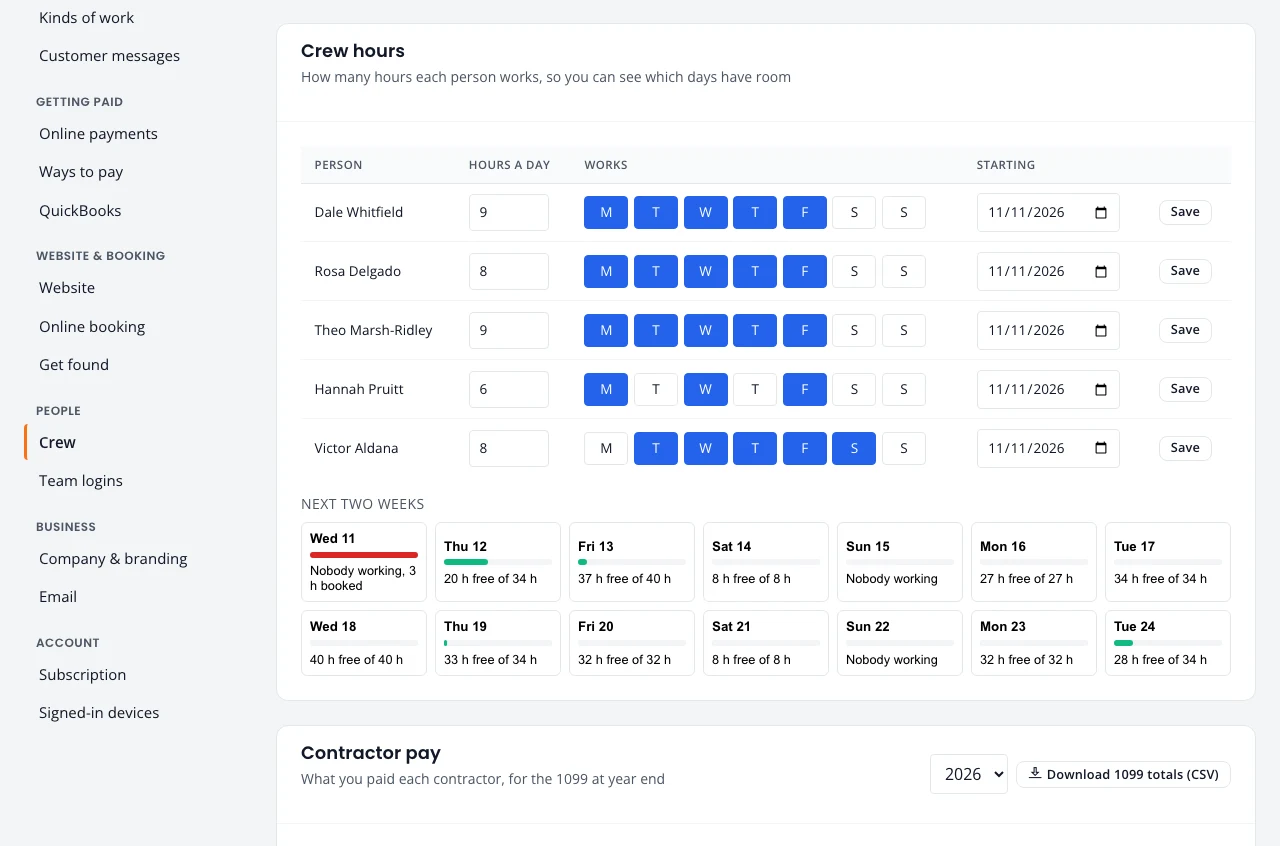
Northfork Trades knows how many hours each person works, so you can see which days have room before you book.
- Set each person’s hours a day and work days once, under Settings, Crew, Crew hours. See Crew hours.
- Mark a Day off or a shorter day for one person, or a holiday for everyone.
- The next two weeks show hours booked against hours free. Red means a day is overbooked.
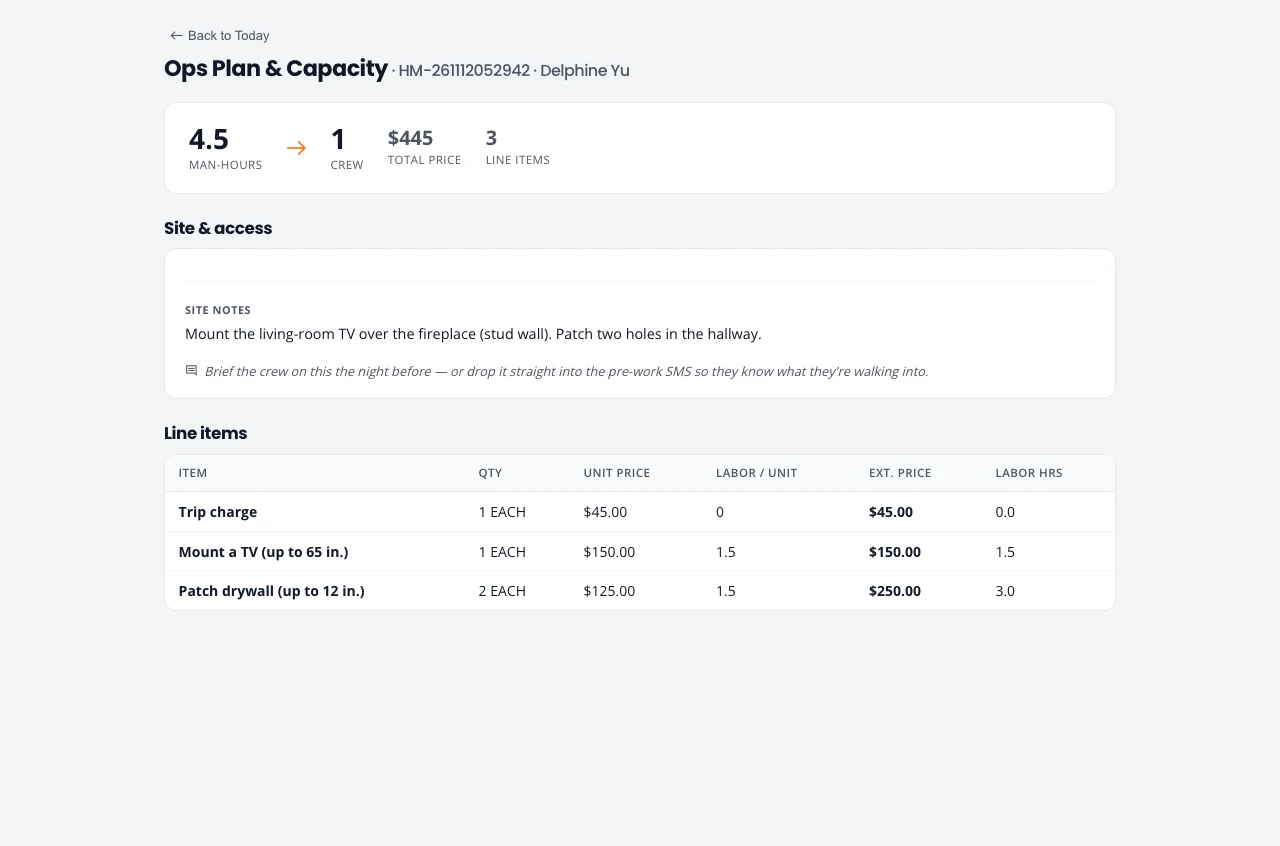
- On a job, Ops plan shows its labor hours, the crew size it needs and the line items, so you know how big a slot to give it.
On the phone, at the job
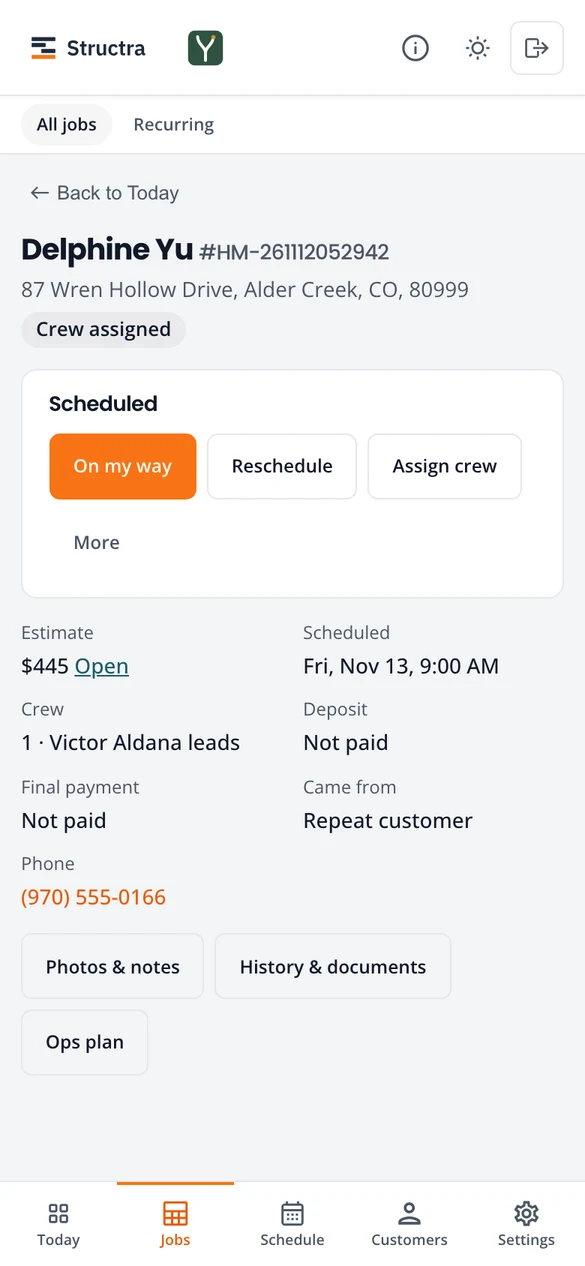
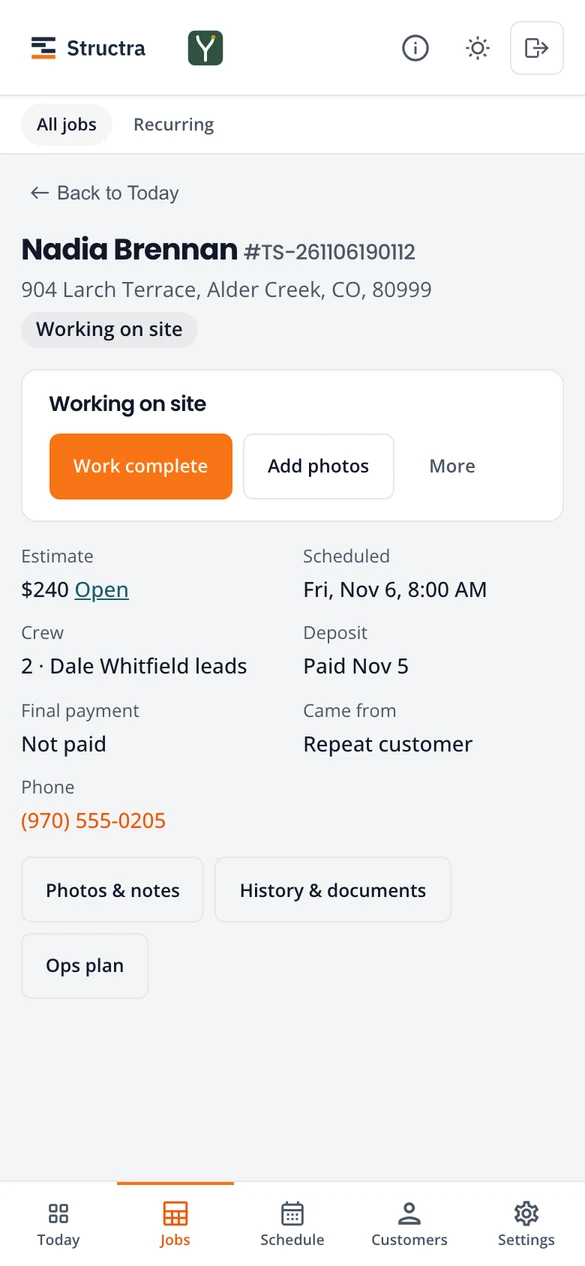
Whoever is at the job uses the job page on their phone. Three buttons move the job along, one at a time:
- On my way when they leave. The customer can get an email that the crew is coming.
- Started when they arrive.
- Work complete when they are done. The job is ready to bill.
Add photos and notes at any point. With no signal, photos and notes wait on the phone and are sent when it reconnects.
Today's route
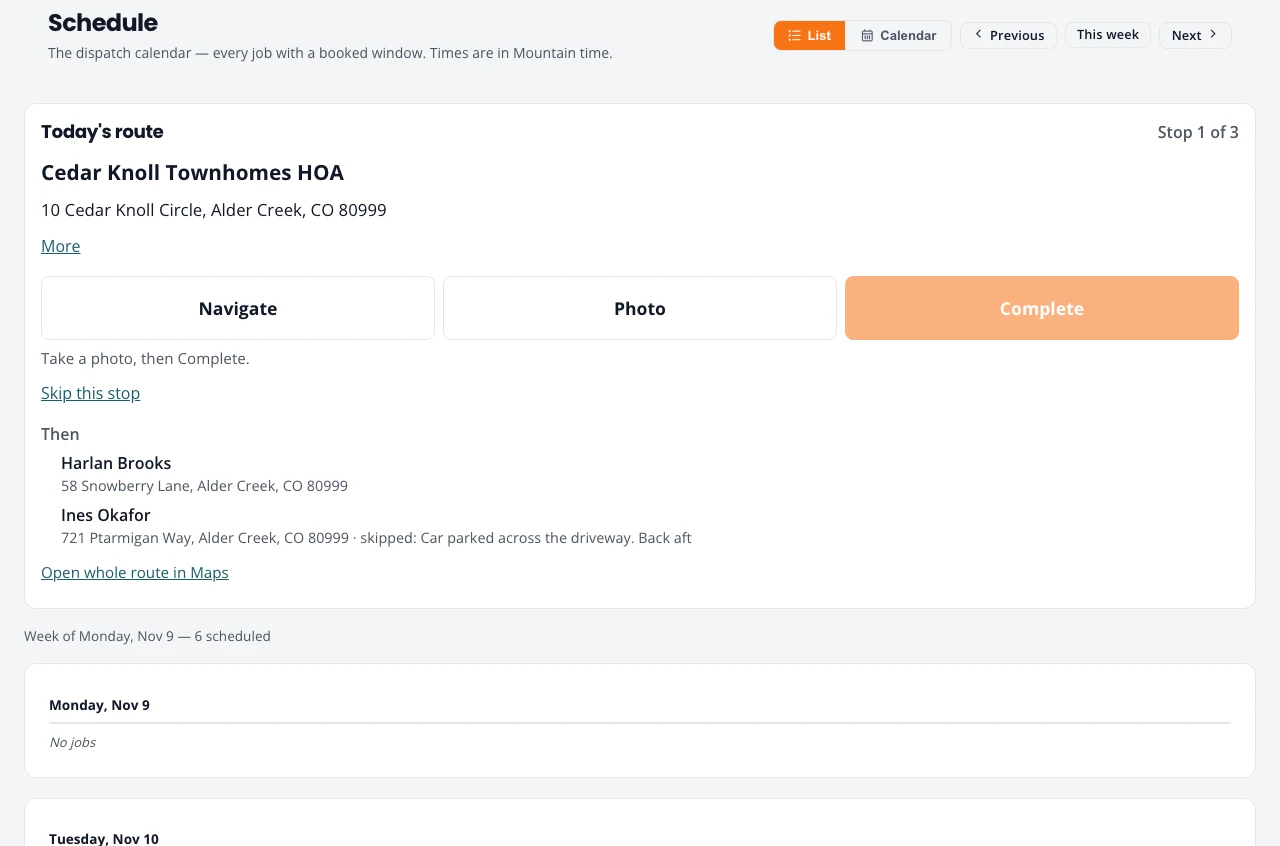
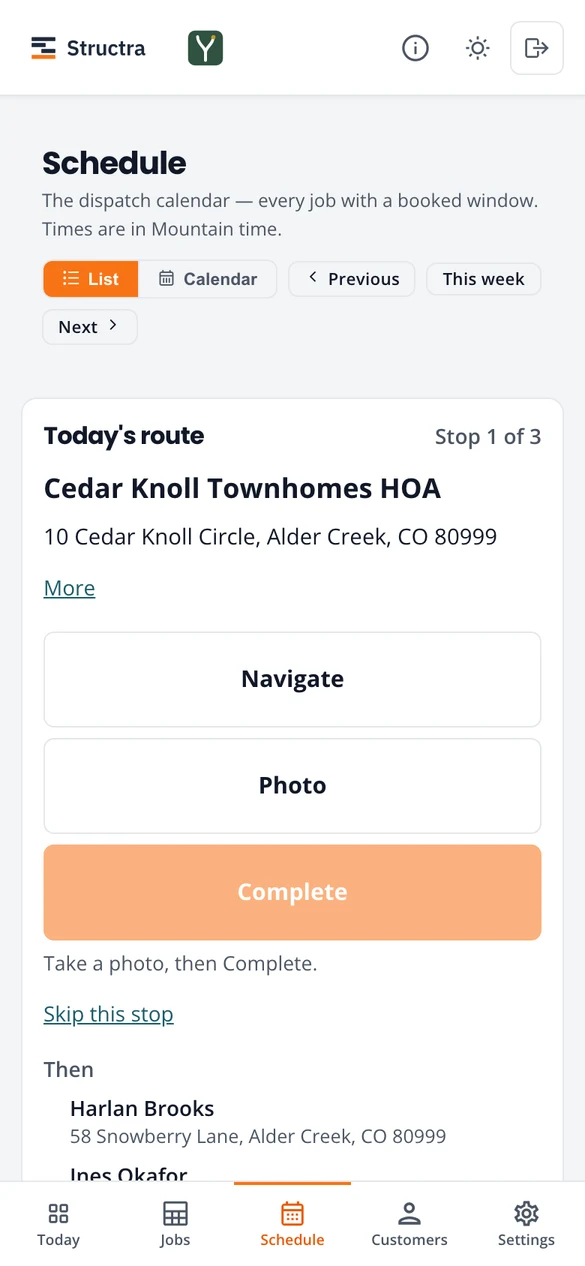
On a day with several stops (a snow route, a run of cleanings), Schedule opens with Today’s route: the stops in driving order, one at a time.
- Navigate opens the address in your maps app. Open whole route in Maps loads every stop.
- Photo, then Complete. If you require a photo, Complete waits for one.
- Skip this stop with a reason (for example a car in the driveway). The reason is kept on the job.
The order is worked out from the addresses to keep driving short. More in Snow removal.
What customers and crew are told
- Customers get the emails you switched on under Settings, Customer messages: booked or moved, a reminder the evening before, crew on the way, and a private job status link.
- Crew who agreed to texts get their day by text.
- Nobody is texted without their agreement on record.
Extra hands for a day
When you are short, offer a job (or a set of storm stops) to contractors on your crew by text, with the day rate, from Jobs or from Offer extra stops to day crew when you start a storm route. The first to reply TAKE, up to the number you need, get the work and a crew contract to sign. Only contractors who agreed to job offers by text get them.
Stuck on something? Email support@northforktrades.com and tell us what you were trying to do.