Recurring service
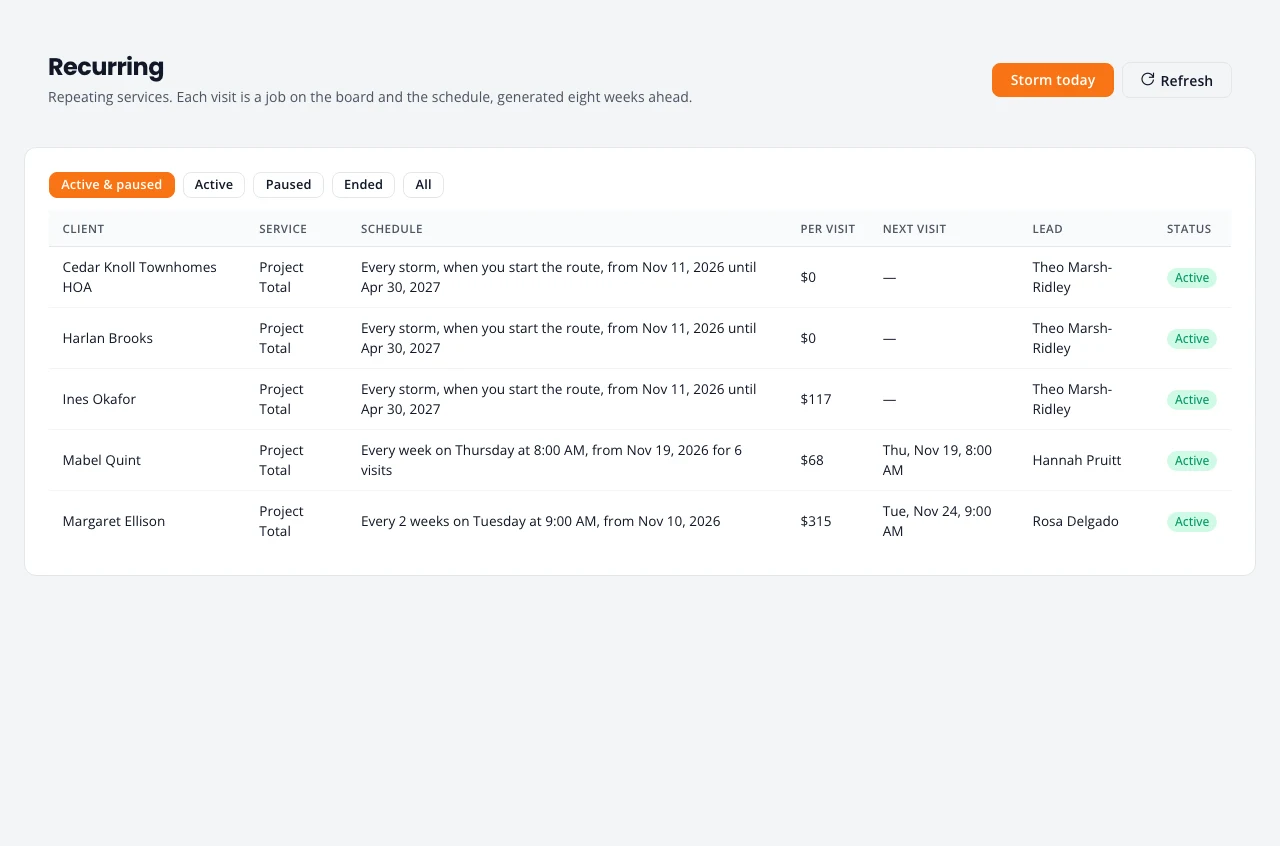
For customers on a regular schedule, set the visits up once. Northfork Trades puts each visit on your calendar and keeps adding more, so you never rebuild the same job.
How recurring service works
- The customer signs one estimate. It covers every visit.
- Each visit is its own job on Jobs and Schedule, already marked Scheduled.
- Visits are added eight weeks ahead, and topped up as time passes.
- On Jobs, a visit carries a Repeats tag. The original signed job carries Recurring series.
Quote it as recurring
Tell the customer how often and the price per visit before they sign.
- Build the estimate as usual. See Estimates.
- On the Pricing step, under How often, set Service frequency to Weekly, Every 2 weeks, Every 4 weeks or Monthly.
- Create and send the estimate.
The customer sees a line such as “Standard Clean every week — $260 per visit”, and the terms gain a recurring-service clause.
Make a job recurring
Do this once the customer has signed.
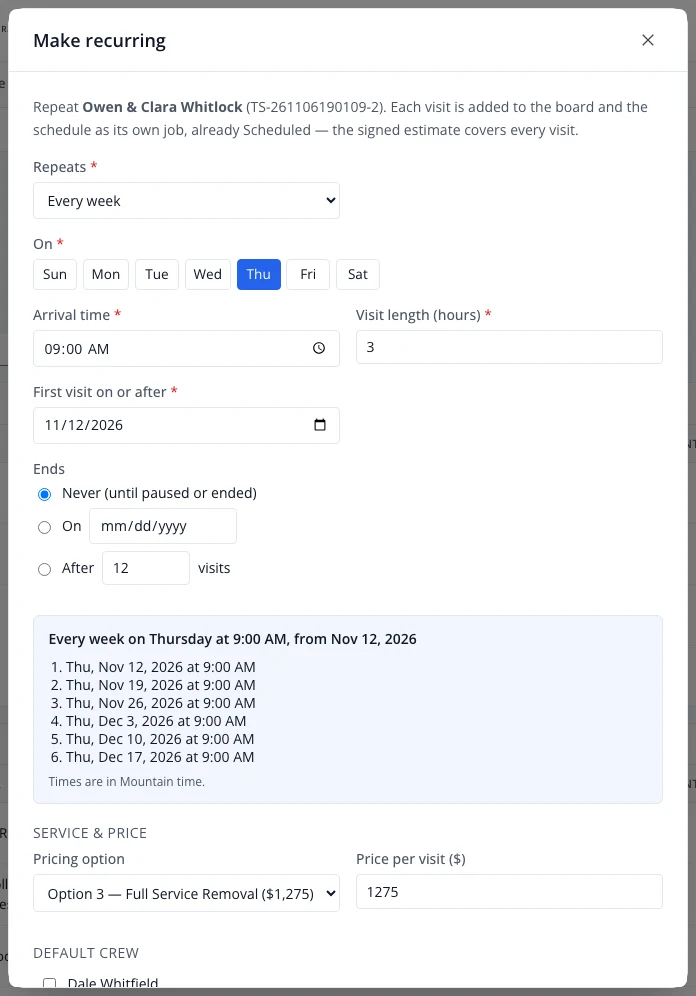
- On Jobs, open the signed job’s row menu (the three dots) and choose Make recurring.
- Under Repeats, choose how often: Every week, Every 2 weeks, Every 4 weeks, Every … weeks, Monthly on a date or Monthly on a weekday. For snow removal there is also Every storm (snow route). See Snow removal.
- Under On, select the day. Set the Arrival time and Visit length (hours).
- Set First visit on or after.
- Under Ends, choose Never (until paused or ended), a date, or a number of visits.
- Check the list of the next six visits. It updates as you change the settings.
- Check the Price per visit ($), tick the Default crew, and choose who is Lead.
- Under Billing, leave Invoice each visit automatically when it’s marked Work complete ticked, or untick it to send each visit’s invoice yourself. See Invoice each visit automatically.
- Press Create schedule.
Move or skip one visit
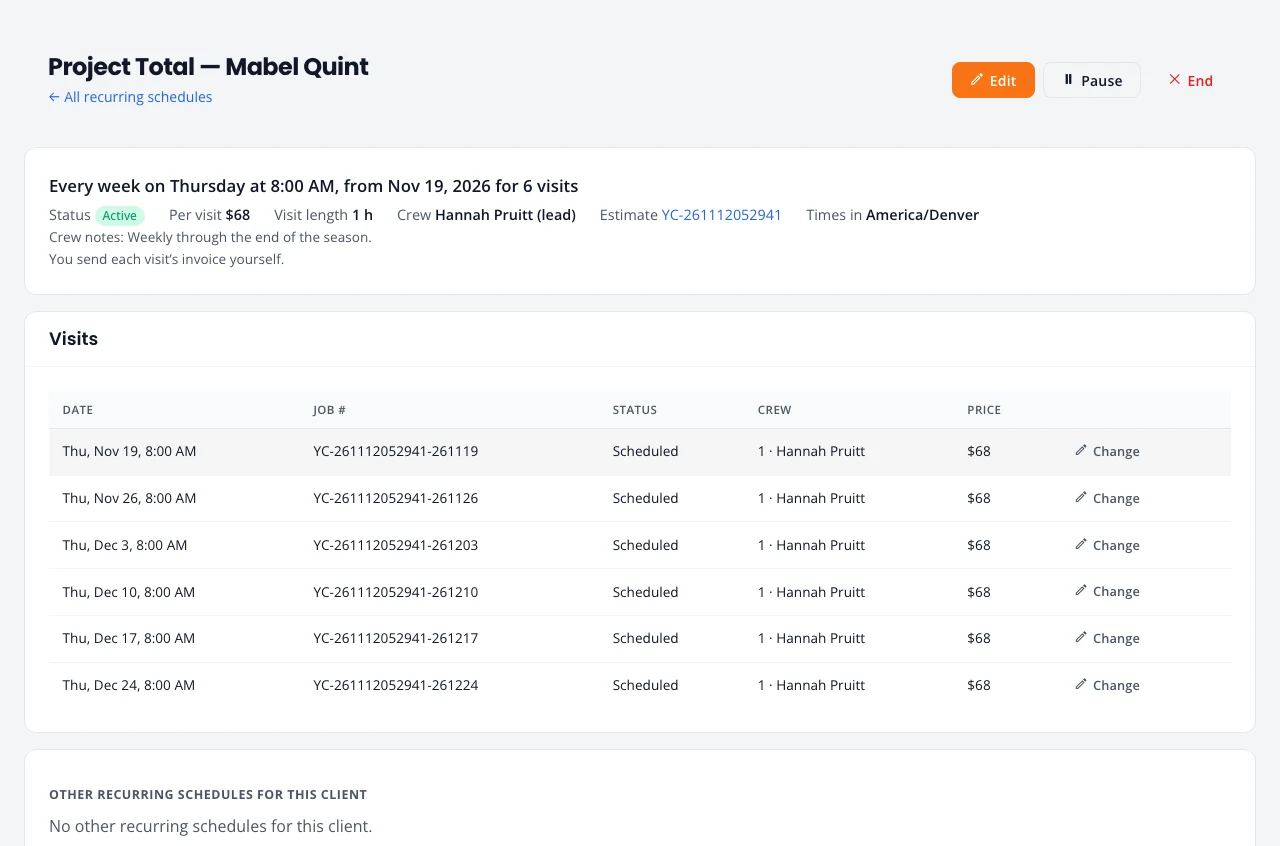
- Open Recurring and select the customer’s schedule.
- Under Visits, press Change beside the visit.
- Leave This visit selected, then choose Reschedule this visit, Change crew for this visit or Skip this visit.
Only that visit changes. The rest of the schedule carries on. A skipped visit stays skipped.
Change this and following visits
Use this when the day, time, crew or length changes from a certain visit onward.
- On the schedule, press Change beside the first visit that should be different.
- Select This and following visits.
- Change what you need and press Save changes.
To change the whole schedule from a date, press Edit at the top of the schedule and set Apply from.
Change the price
- On the schedule, press Edit.
- Set Apply from to the date the new price starts.
- Change Price per visit ($).
- To change visits that are already on the calendar from that date, tick Also re-price visits already on the schedule. Leave it unticked to change only visits added later. The box shows when the price is the only thing you changed.
- Press Save changes.
Visits that have already started or been paid keep the old price.
Invoice each visit automatically
With Invoice each visit automatically when it’s marked Work complete ticked, you do not send visit invoices by hand. When you mark a visit Work Complete, the customer is emailed its final invoice at the visit’s usual price, with a link to pay online. It is the same invoice as Send the final invoice.
- The box is ticked when you make a new schedule.
- The schedule page says which way it is set: “Each visit is invoiced automatically when it is marked Work complete” or “You send each visit’s invoice yourself”.
- To change it, press Edit on the schedule and tick or untick the box under Billing. It applies to every visit that has not been invoiced yet.
- Only the first invoice for a visit is sent automatically. If a visit already has an invoice, or you recorded its payment by hand, nothing is sent.
- A visit on a budget plan the customer agreed to is paid from the plan and never invoiced, whatever this box says. See Budget plans.
- A customer with a card on file gets no invoice email. You charge the card from Follow up instead. See Card on file for plan visits.
- A finished visit with a price and no invoice shows on Follow up under Visits to bill, with Send invoice. That covers visits you bill yourself and any the automatic invoice could not send. A visit priced at $0 never shows there.
Budget plans: the same amount each month
A budget plan lets a customer on a schedule pay an even amount each month from a saved card. Each finished visit is paid from the money they paid in. At the end of the season you settle up the difference. It suits snow route customers whose bill changes with the weather.
Set it up
- Open the schedule from Recurring. The Budget plan card is on the schedule page.
- Type the Visits this season you expect. Choose Spread over (1 to 12 months), the First payment month and the Payment day (1 to 28). A Season name such as “Winter 2026-27” is optional.
- Check the line under the form, for example “14 visits × $65 = $910 → $75.84 a month for 12 months”. The visit price is the schedule’s price per visit. The monthly amount is rounded up to the cent.
- Press Save plan, then Send to customer by email or Send by text (text only if they agreed to texts).
The customer opens the link, reads the terms, ticks I agree and presses Agree to the plan. If they have no card on file, they add one on Stripe’s page next. The terms they agree to name the monthly amount, the months, the payment day, the season estimate and how settle-up works, and are kept as they read them. The link works for 14 days. Until they agree, the card says Waiting for the customer, you can still change the terms, and visits are billed the usual way.
Each month
- A month that is due and not paid shows on the plan under Payments due, and on Follow up under Plan payments due.
- Press Charge on a month, or Charge all on Follow up. The box lists each card and amount and the total; press the button with the count and total to go ahead. Nothing is charged until you press it.
- The customer gets a receipt from your business after each charge.
- If a card is declined, the customer is emailed their plan page, where they can pay with a card. The month stays on the list.
- Paid another way? Press Record a payment, type the amount and choose cash, check, Venmo, Zelle, bank transfer or other. It goes on the plan.
- Email plan page sends the customer their statement, with a button to pay what is due.
Each visit
When a visit is marked Work complete, it is paid from the plan at the visit price and closes as paid. No invoice is sent. The card shows what was paid in and used, for example “Paid in $151.68 · used $130.00 · $21.68 left”, and a list of every payment and visit.
Visits never wait for money. If more visits are used than paid for, the plan goes behind. When it is behind by more than one month’s payment, the card says Running behind.
Settle up at the end of the season
- Press Settle up. The box says what is left, what is owed, or that it is even.
- Money left over: Carry the credit to next season (the usual choice) or Refund it to their card (offered when the money came in by card). A carried credit moves onto the customer’s next budget plan when they agree to it.
- Money owed: Charge their card now (if they have a card on file) or Email them a link to pay. After a link is paid, settle up again to close the season.
- Even: Close the season.
Once the customer agrees, the terms cannot change. Cancel plan works until money is paid in or used; after that, settle up instead. Cancelling puts visits back to being billed one at a time.
Photos sent to the customer
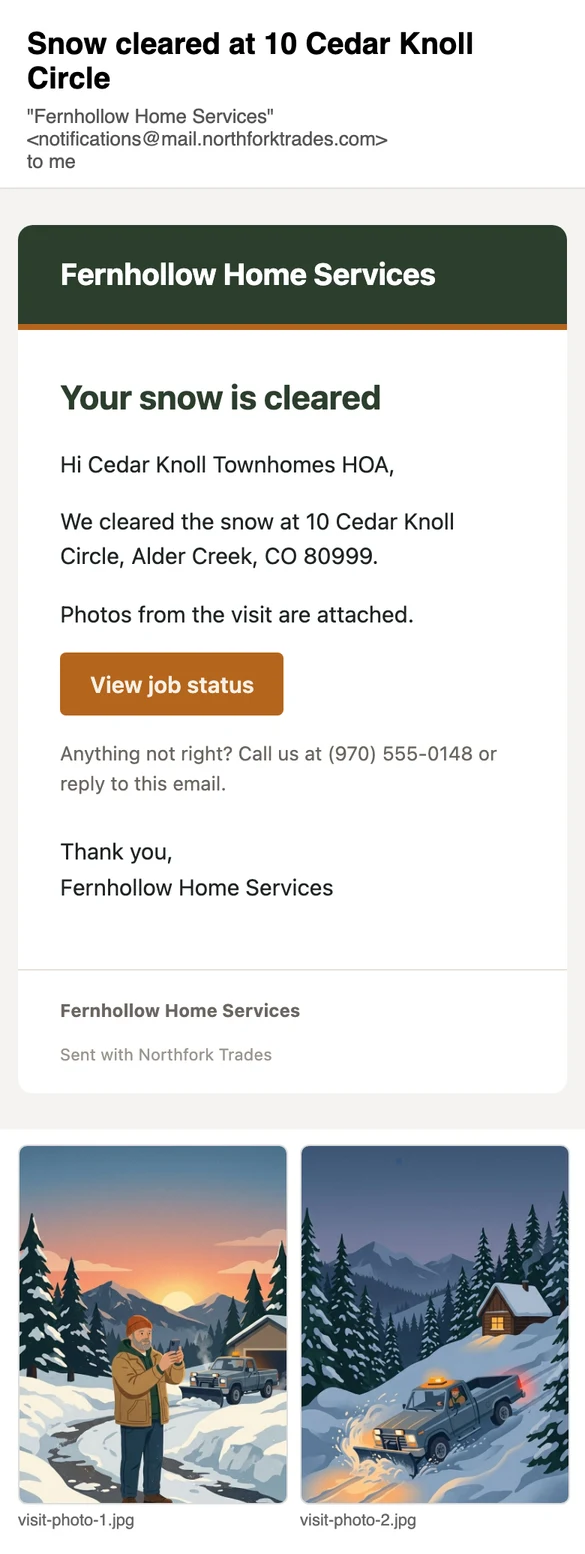
About two minutes after a visit is marked Work complete, the customer gets an email from your business: “Your visit at” their street “is done” (for snow, “Snow cleared at”), with photos from the visit attached. Nobody has to call and ask whether you came.
To send a before and an after:
- When you get there, open the visit on your phone, press Add photos and take the before.
- When you finish, press Add photos again and take the after.
- Press Work complete.
- The four newest photos on the visit go with the email. Take more than four and the oldest are left off. A very large photo (over 5 MB) is left off too.
- No photos? The email still goes, without them.
- The email gives your phone number, “Anything not right?”, and a link to the job’s status page. A reply comes back to you.
- Customers who agreed to texts also get a short text that the photos are in their email, if customer texts are on.
- It goes for visits on a recurring schedule or a snow route. A one-off job does not send it; its photos stay on the job.
It is on unless you switch off Visit is done under Customer messages.
Pause a schedule
For a customer who is away for a while.
- On the schedule, press Pause.
- Set Resume on to the date service starts again. Leave it empty to pause until you resume it yourself.
- Press Pause.
Visits before the resume date that have not started come off the calendar. If you resume early, they go back on.
End a schedule
- On the schedule, press End.
- Set the Last visit date.
- Press End schedule.
Visits after that date that have not started are removed. Visits up to that date, and anything already started or paid, stay.
Stuck on something? Email support@northforktrades.com and tell us what you were trying to do.