Estimates
An estimate is four steps: the customer, what the work is, the price, and a last check. Prices come from your own price list, so two people quoting the same job get the same number.
Press New Estimate on Today (or Write estimate on a lead). Your work is saved as a draft as you go; the job itself is only made when you press Create Estimate at the end. An unfinished draft waits on Today under Estimates you are writing.
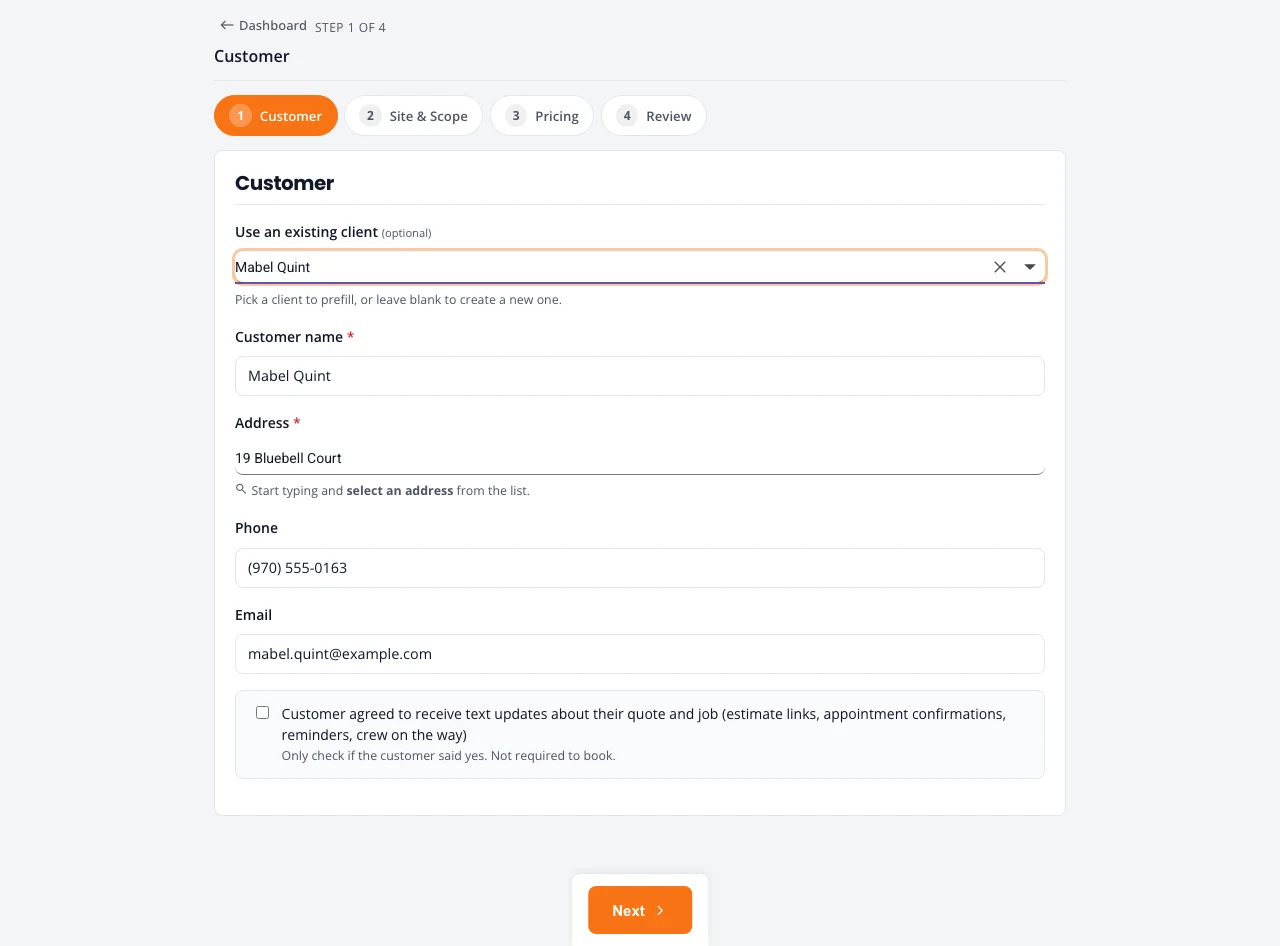
1. Customer
Pick an existing customer from Use an existing client, or type a new one: name, address (pick it from the list as you type), phone and email. Choose How did they find you?. Tick the text box only if the customer agreed to texts.
2. Site & Scope
- Pick the Kind of work. It decides which services and questions you see.
- Write Access notes (gate codes, dogs, parking) and Site notes (what the customer asked for).
- Press Add service for each item. Pick it from your price list, then its size or difficulty and the quantity. Add a description for the customer if you want.
- Need something not on your list? Add custom line with your own price.
- Press Next. The price is worked out from your list.
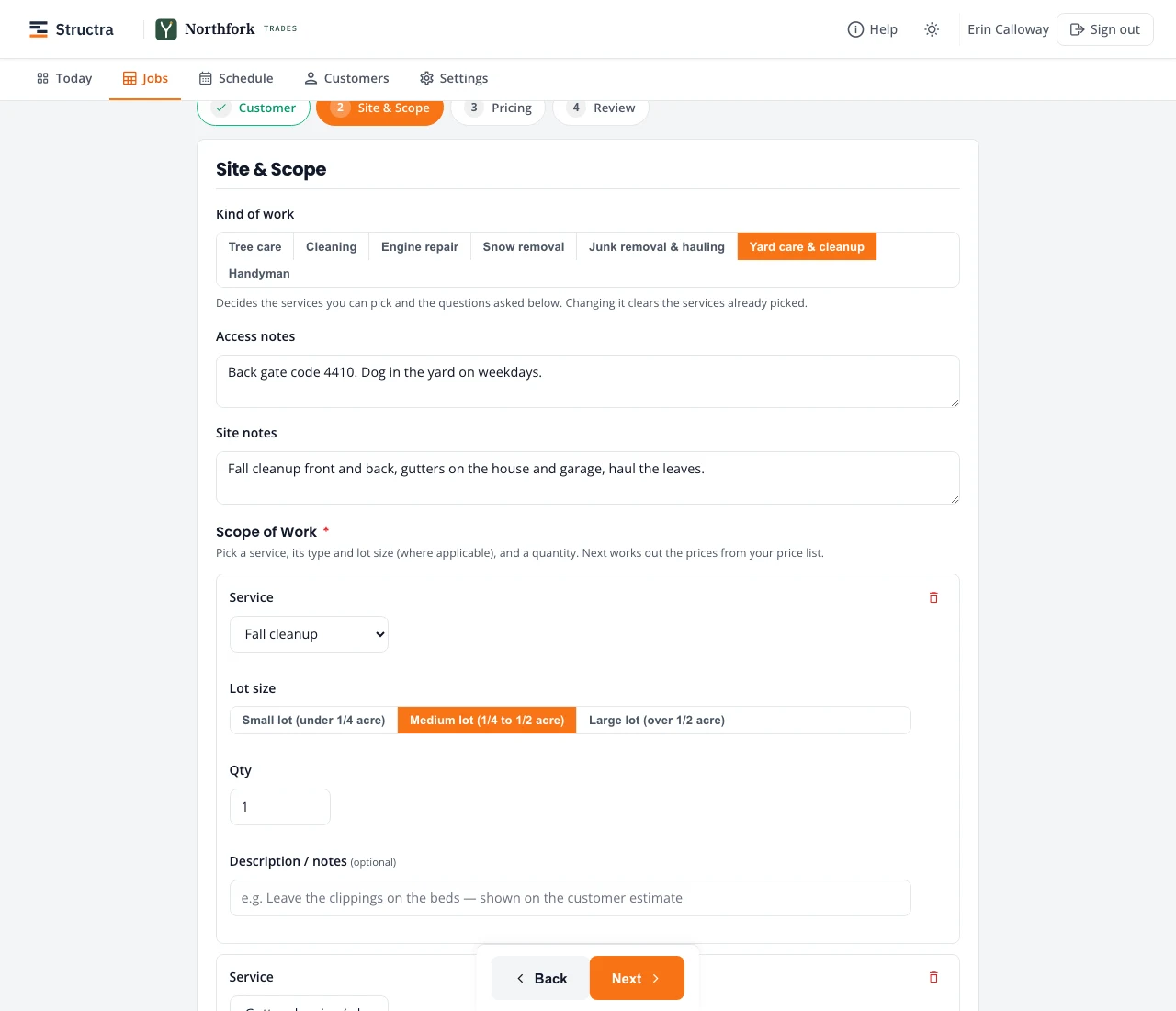
Each kind of work asks its own questions: site conditions and climbing for tree care, home condition for cleaning, loads and the dump site for hauling. See the guides by trade.
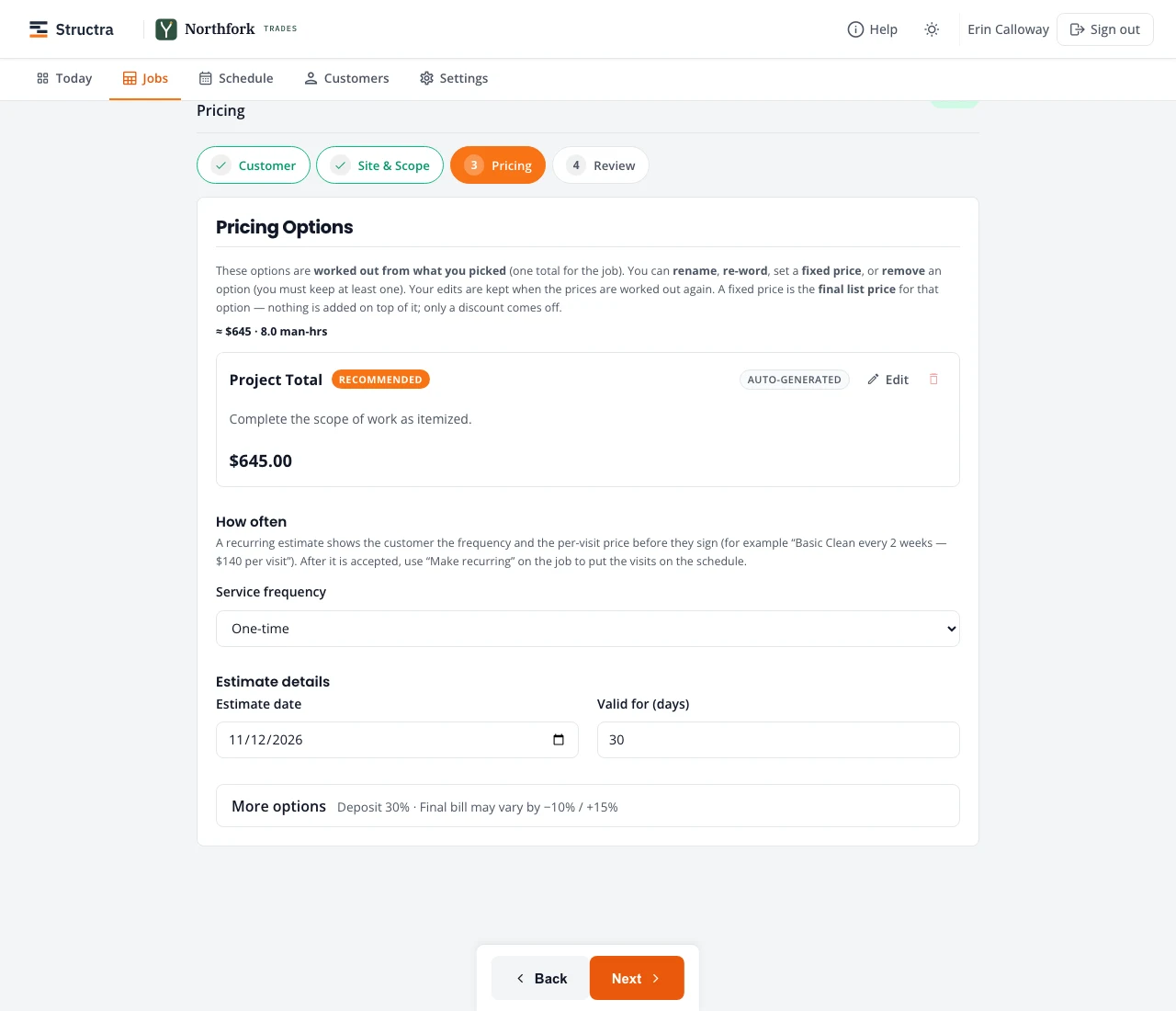
3. Pricing
The Project Total is worked out from what you picked. You can rename it, reword it, set a fixed price, or add more options for the customer to choose between (for example a basic and a full cleanup). One is marked Recommended.
- How often: one-time, or a repeating service with its per-visit price.
- Estimate details: the date and how many days it is valid.
- More options: deposit, how far the final bill may vary from the estimate, and a discount. The closed line says what is set, so you only open it to change something.
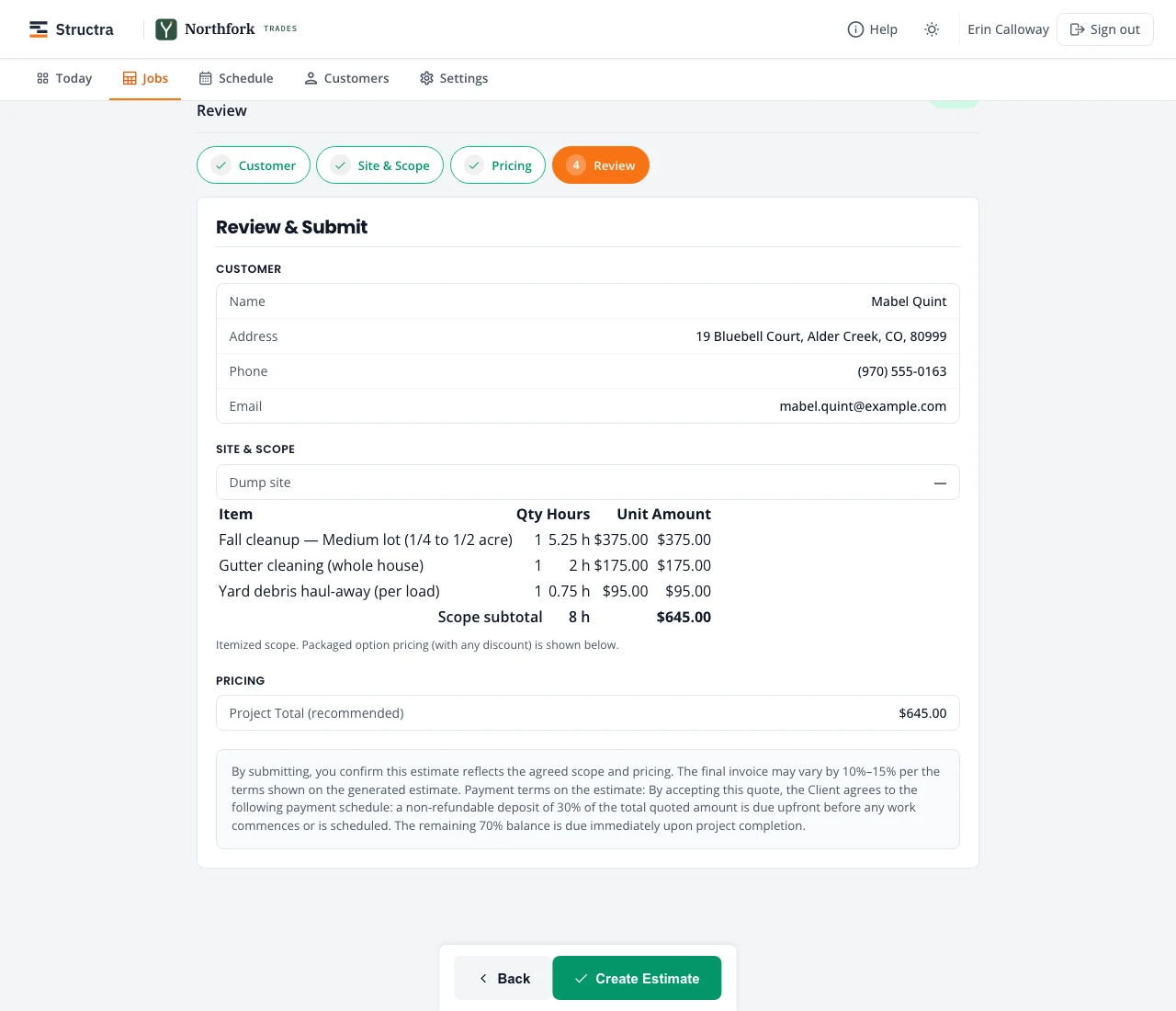
4. Review and create
Check the customer, the scope and the price. Press Create Estimate. The job is made (it shows on Jobs under Estimating) and you get two buttons: Send to customer and Download Estimate PDF.
Send it
Send to customer (or Send estimate on the job page) emails the customer a link. If they agreed to texts, it can text the link too. The job moves to Estimate sent and, if nobody signs, it shows on Follow up under Estimates not answered after a couple of days.
What the customer sees
The customer needs no account or app. On their phone they:
- Open the link and read the scope, the price and your terms.
- Pick an option if you gave more than one.
- Type their name, sign with a finger if they want, and tick that they accept.
- Pay the deposit by card or bank if you take one online, or see the other ways they can pay you.
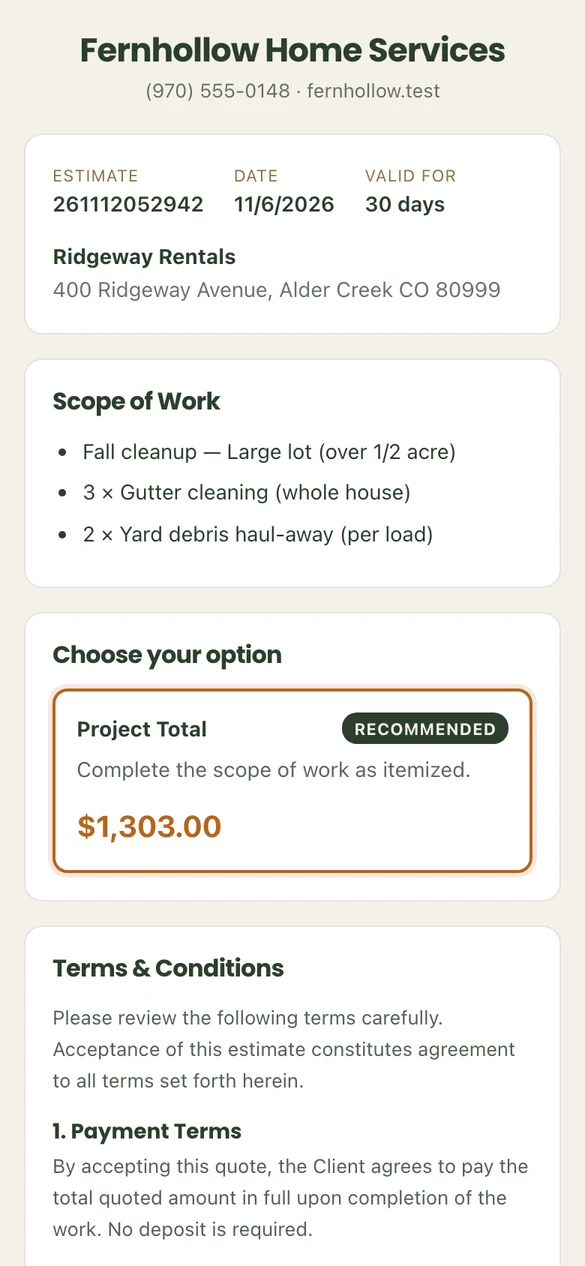
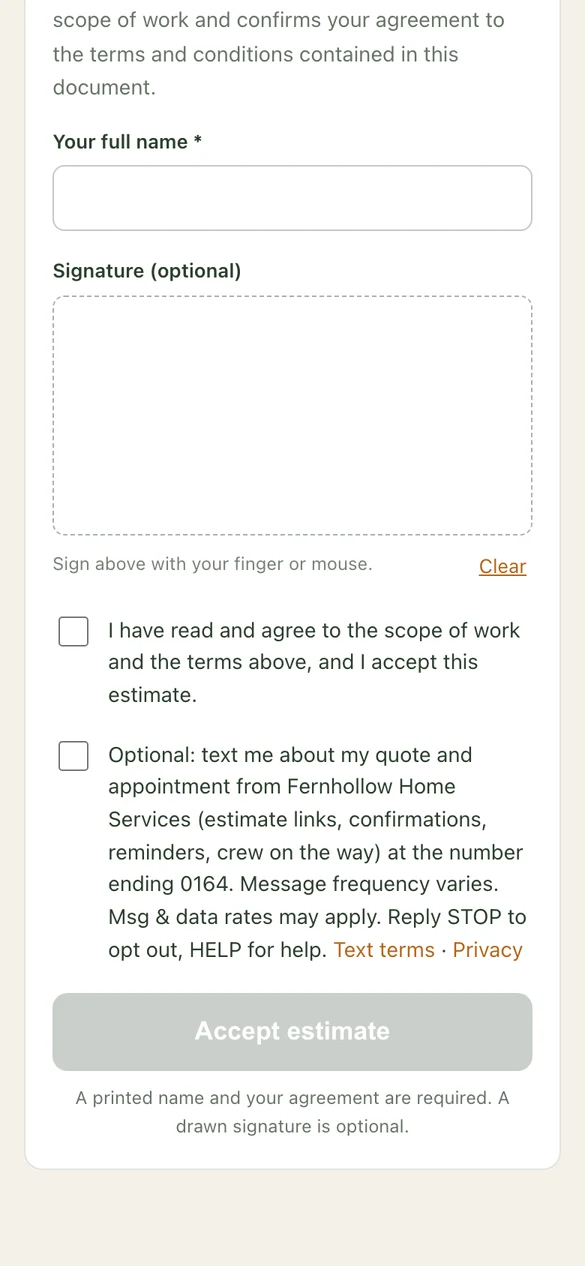
You get an email when they sign, and the job moves on by itself: to deposit owed, or straight to ready to schedule.
Change, decline or reopen
- Before it is signed: Edit estimate on the job page, change it, and send it again.
- The customer said no: Mark declined. The job moves to Expired & declined estimates.
- They come back later: open the job and press Reopen estimate.
- Extra work after signing goes on a change order the customer signs the same way. See Change orders.
Stuck on something? Email support@northforktrades.com and tell us what you were trying to do.