Customers and reviews
Every customer you quote is kept under Customers with their contact details and every job you have done for them. When a job is paid, the customer is asked for a review on their own.
Find a customer
Customers are added when you start an estimate or a request comes in. You do not add them separately.
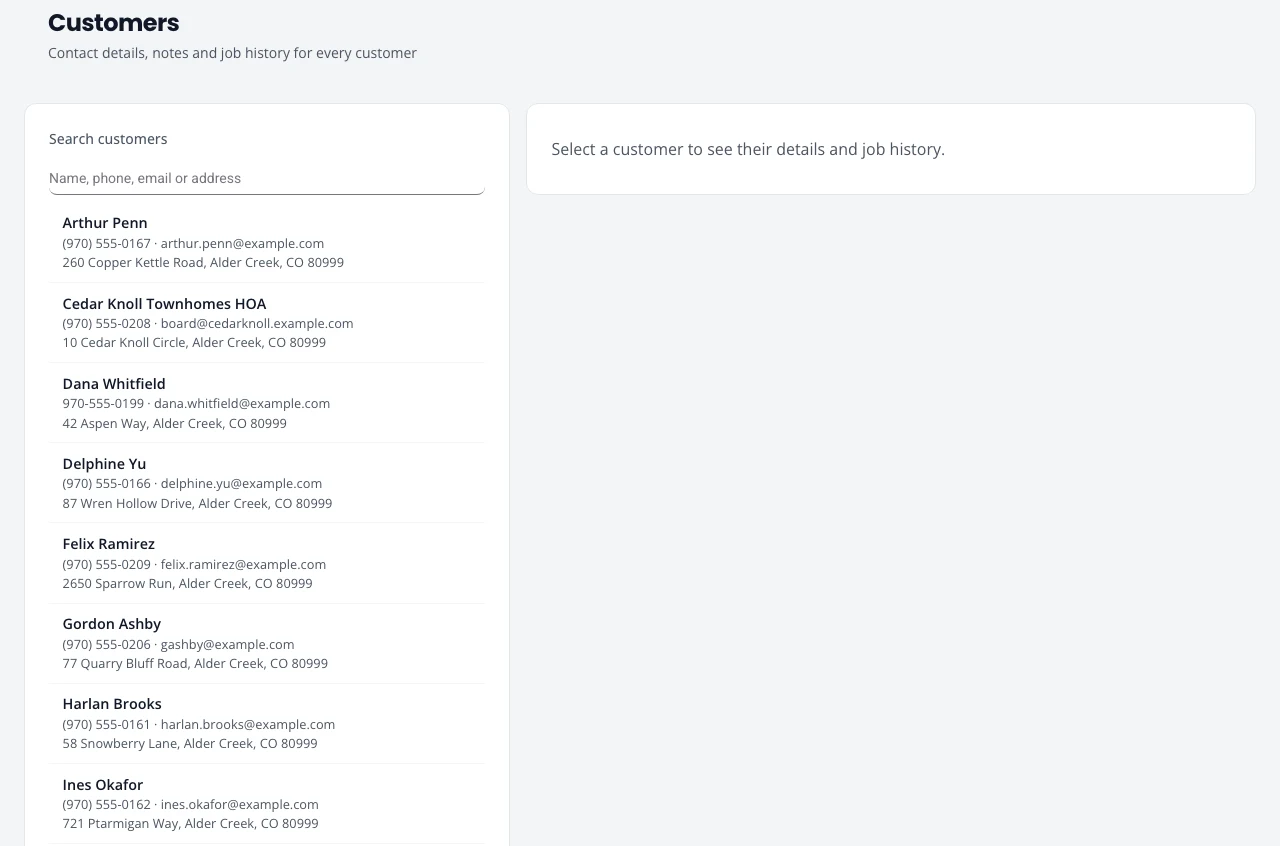
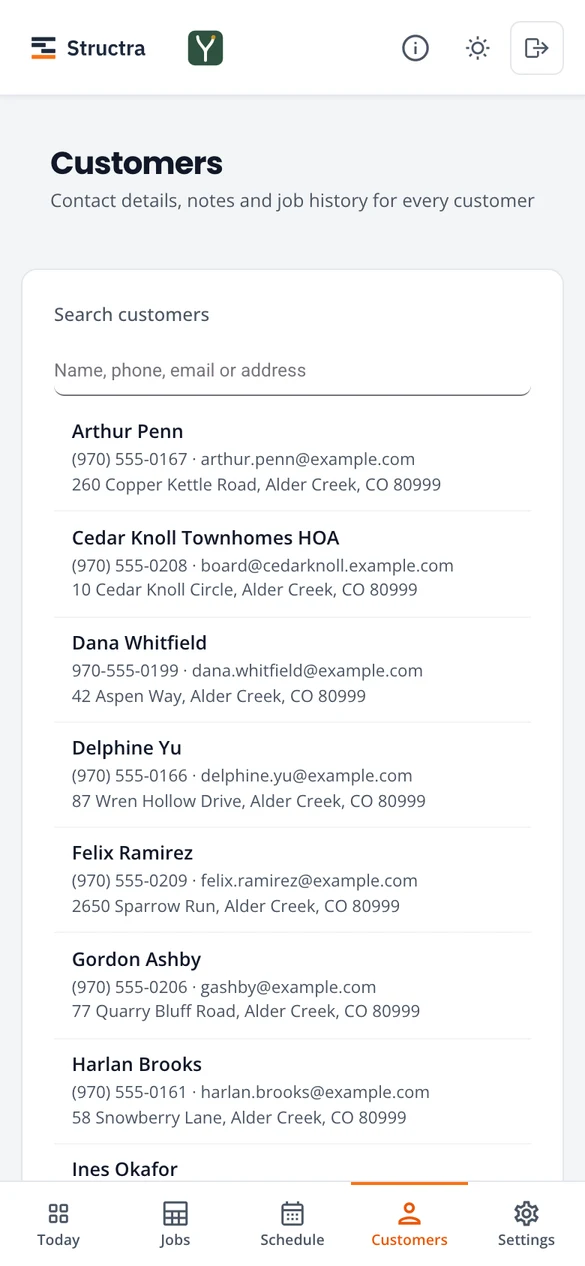
- Open Customers.
- Under Search customers, type part of a name, phone number, email or address.
- Select the customer. Their details and job history open beside the list (below it on a phone).
Beside the phone number you may see Texts OK when the customer agreed to texts, or Replied STOP when they asked for no more.
Change their details
Select the customer, press Edit, change the name, phone, email, address or notes, and save. An estimate already sent or signed does not change. If you change the phone of a customer who agreed to texts, texts stop until they agree again at the new number.
Keep customers informed
Customers can get an email when a visit is booked or moved, a reminder the evening before, and one when the crew taps On my way with the crew member’s photo and an arrival estimate. After a recurring or snow route visit is marked Work complete, they get an email that the visit is done, with up to four of the crew’s photos. A private status page shows whether the crew is scheduled, on the way, on site or done. Switch each on or off under Customer messages.
Card on file
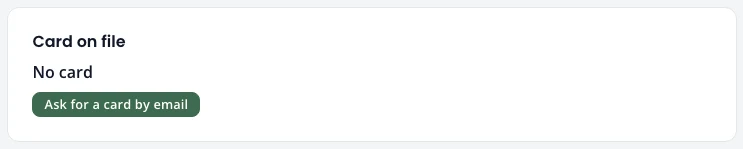
Select a customer to see Card on file: the saved card, a link you sent and are waiting on, or No card. Press Ask for a card by email (or by text, if they agreed to texts) to send them the link, and Remove card to stop charging it. See Card on file for plan visits.
A customer on a budget plan also has a Budget plan card: each open plan with what they paid in, used and have left, and any credit carried from last season. See Budget plans.
Verified reviews after payment
When a job is paid, the customer gets a short email asking how it went. They tap one to five stars and can add a comment. No account is needed.
- Only customers who paid for a job can leave one, so these are verified reviews.
- The review shows on the job page and, if you choose, on your website.
- With your Google review link set, the customer is then offered Google too.
- One request per job. Nobody is asked twice in six months, and unsubscribed customers are never asked.
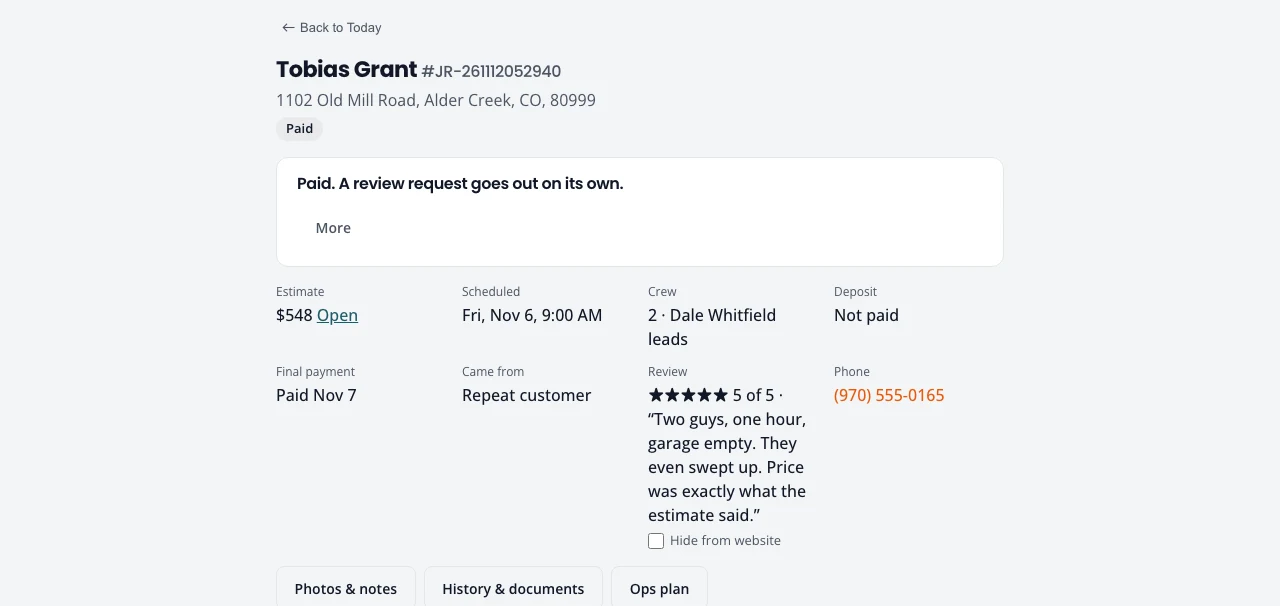
Switch review requests on under Settings, Customer messages. A paid job whose customer was not asked shows on Follow up under Reviews to ask for with a Send review request button.
Google reviews
Paste your Google review link under Customer messages. In your Google Business Profile it is under “Ask for reviews” and starts with https://g.page/. Your website and review requests both use it. Setting up the profile itself is covered in Get found.
Ask past customers
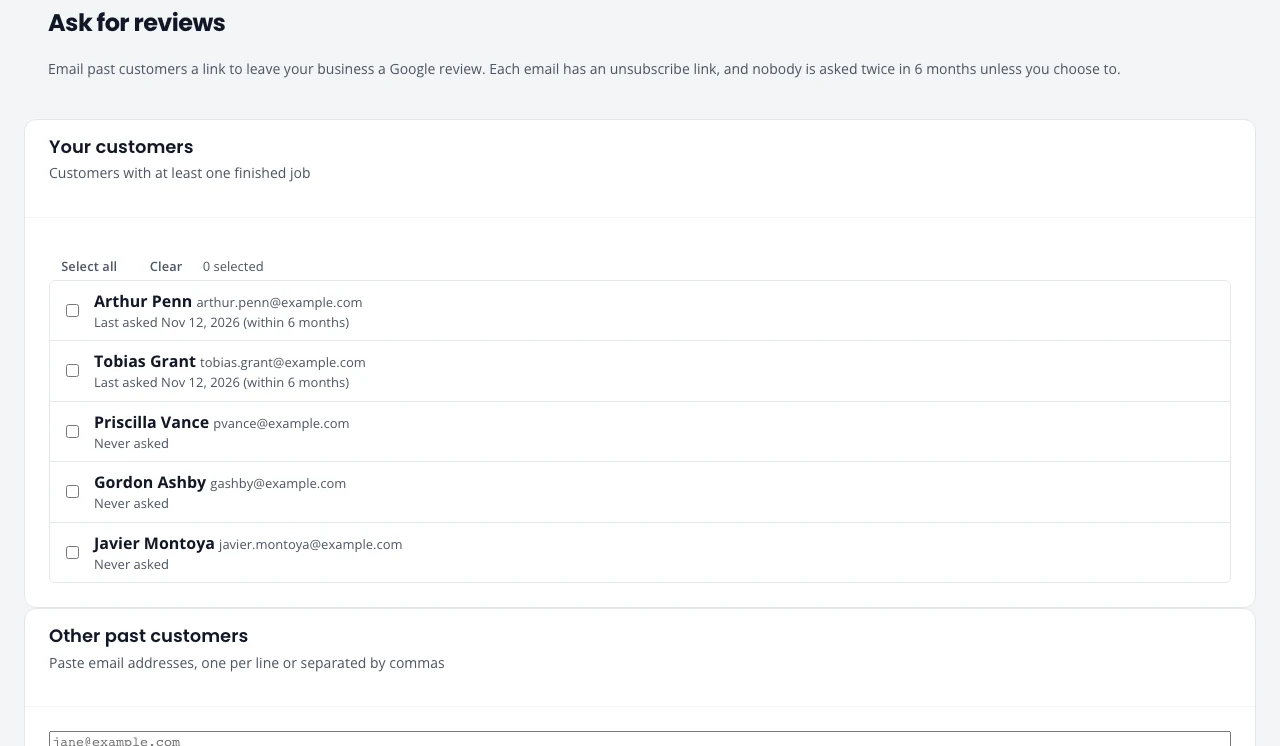
Ask for reviews emails past customers a link to your Google reviews. Open it from Settings, Customer messages, ask past customers now. Admins only.
- Tick the customers to ask. The list shows when each was last asked.
- To ask people not in Northfork Trades yet, paste their email addresses below the list.
- Send. Each email has an unsubscribe link.
Stuck on something? Email support@northforktrades.com and tell us what you were trying to do.