Estimates & jobs settings
The first group in Settings: how your estimates read, what customers sign, the kinds of work you do, and the emails customers get.
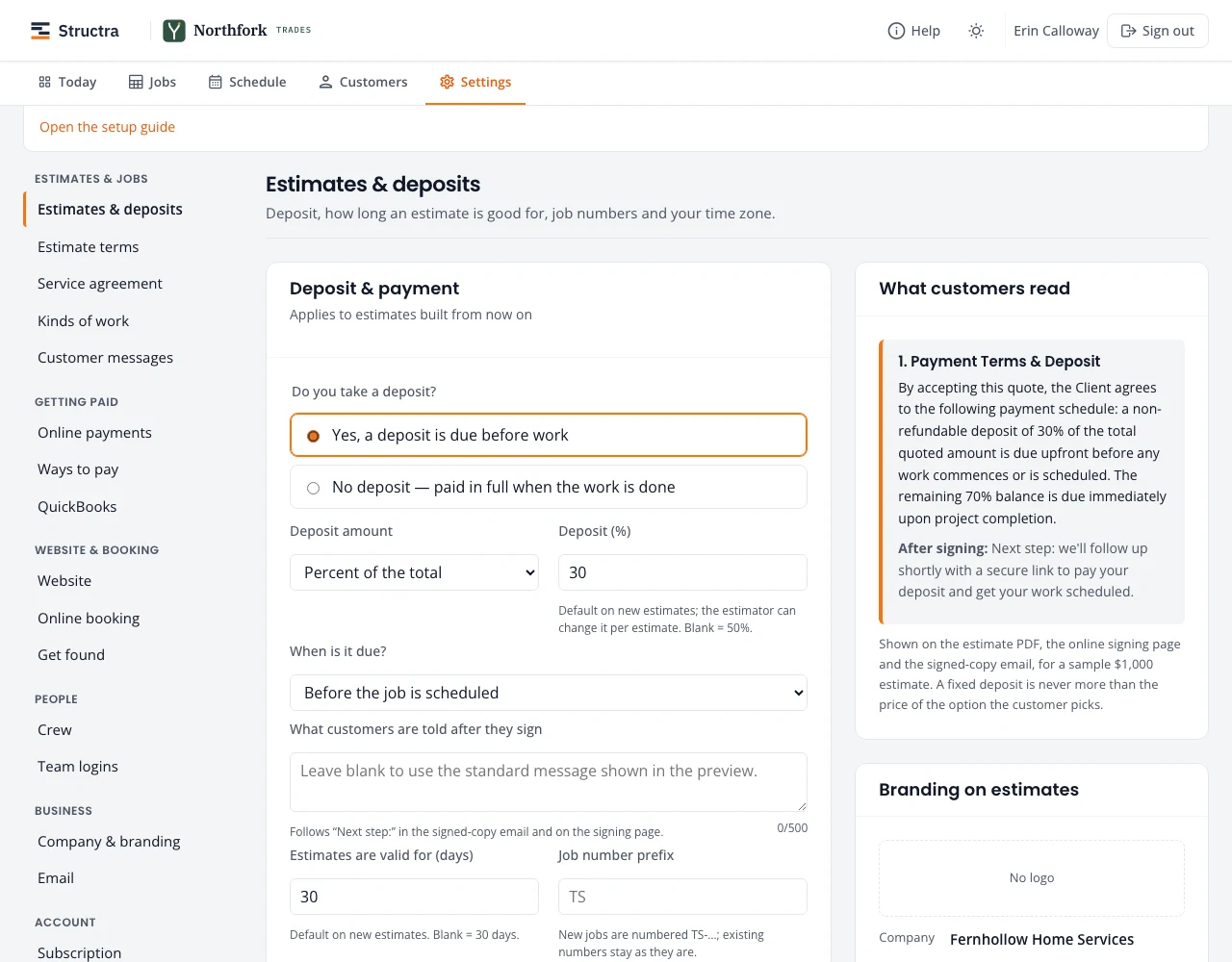
Estimates & deposits
- Do you take a deposit? Yes, or no deposit (paid in full when the work is done).
- The deposit as a percent of the total or a fixed amount, and When is it due? (for example before the job is scheduled).
- What customers are told after they sign: leave it blank for the standard message.
- Estimates are valid for (days), the Job number prefix and your Time zone.
What customers read on the right shows the payment terms your choices produce, for a sample $1,000 estimate. Changes apply to estimates built from now on; the estimator can still change the deposit on one estimate.
Budget plans
On the same page, under Budget plans: Offer budget plans lets customers on a recurring schedule pay an even amount each month. It is on for every company. Untick it and press Save budget plans setting to stop offering new plans; plans customers already agreed to keep running. See Budget plans.
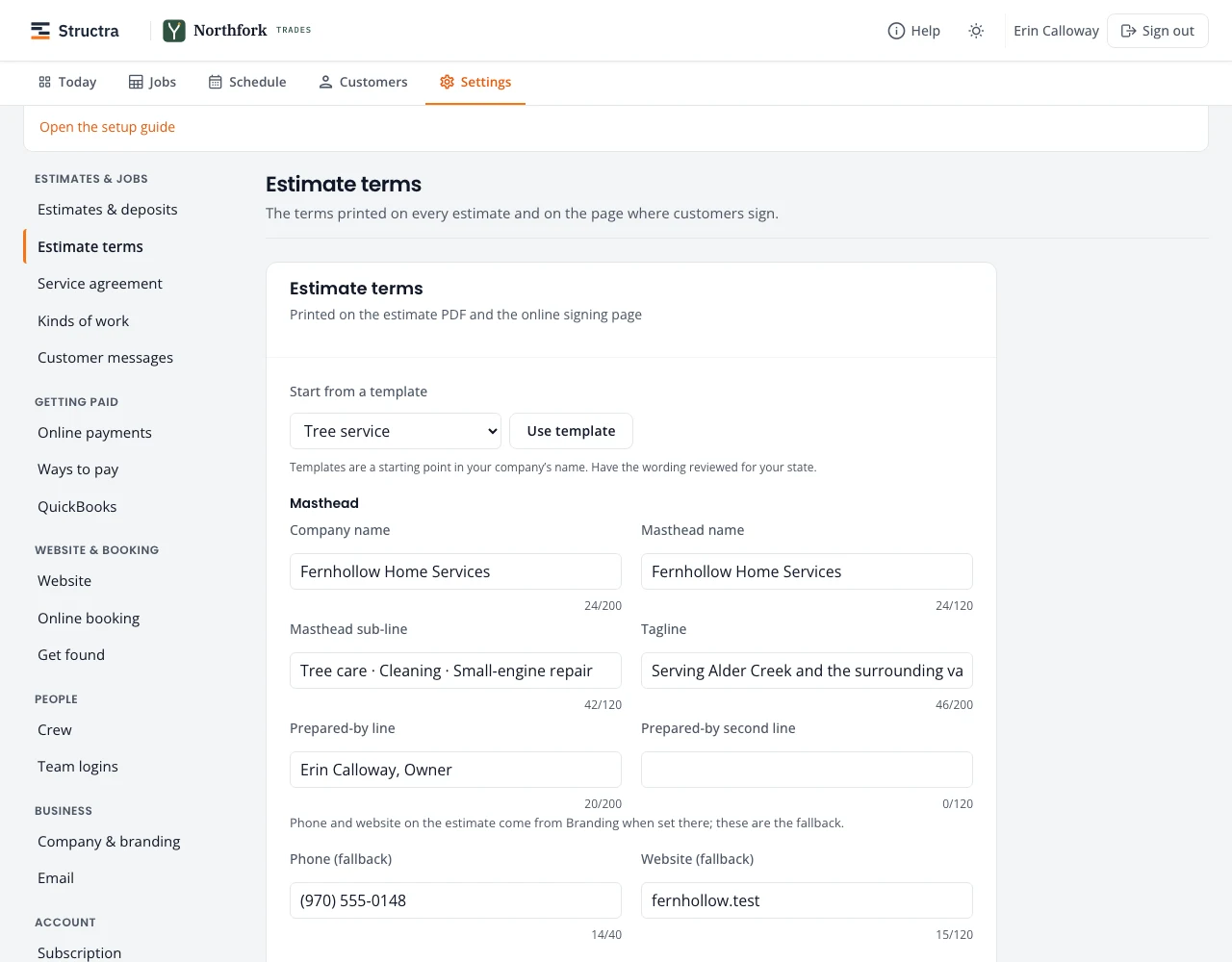
Estimate terms
The terms printed on the estimate PDF and the signing page. Start from a template (General, Tree service or Cleaning) and press Use template; it is written in your company’s name. Then edit the masthead (name, sub-line, tagline, prepared-by line) and the terms. Have the wording reviewed for your state.
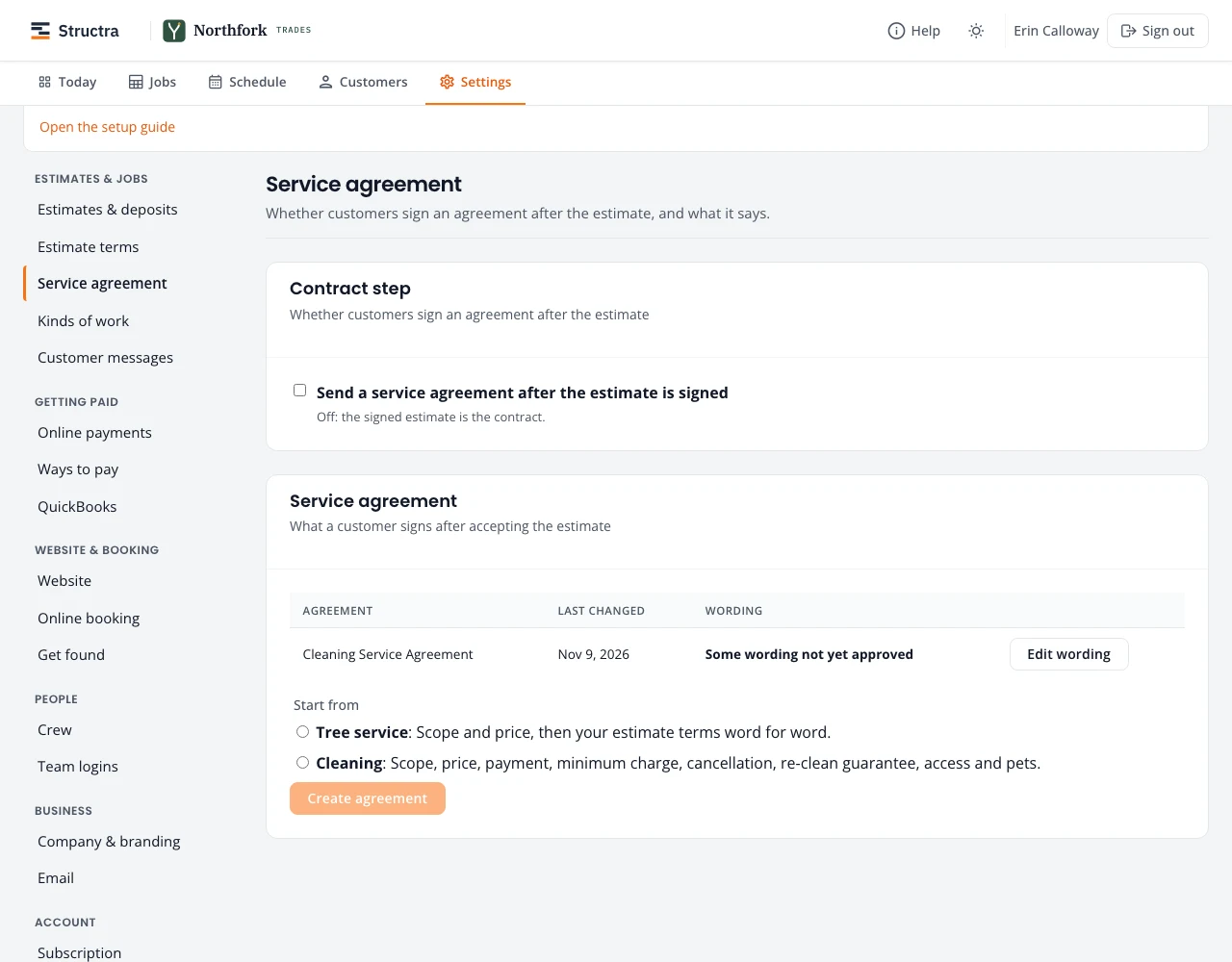
Service agreement
Off by default: the signed estimate is the contract. Switch on Send a service agreement after the estimate is signed if you want customers to sign a fuller agreement as well. Start one from the tree service or cleaning starting point with Create agreement, then Edit wording. An agreement waiting to be signed shows on Follow up under Contracts unsigned.
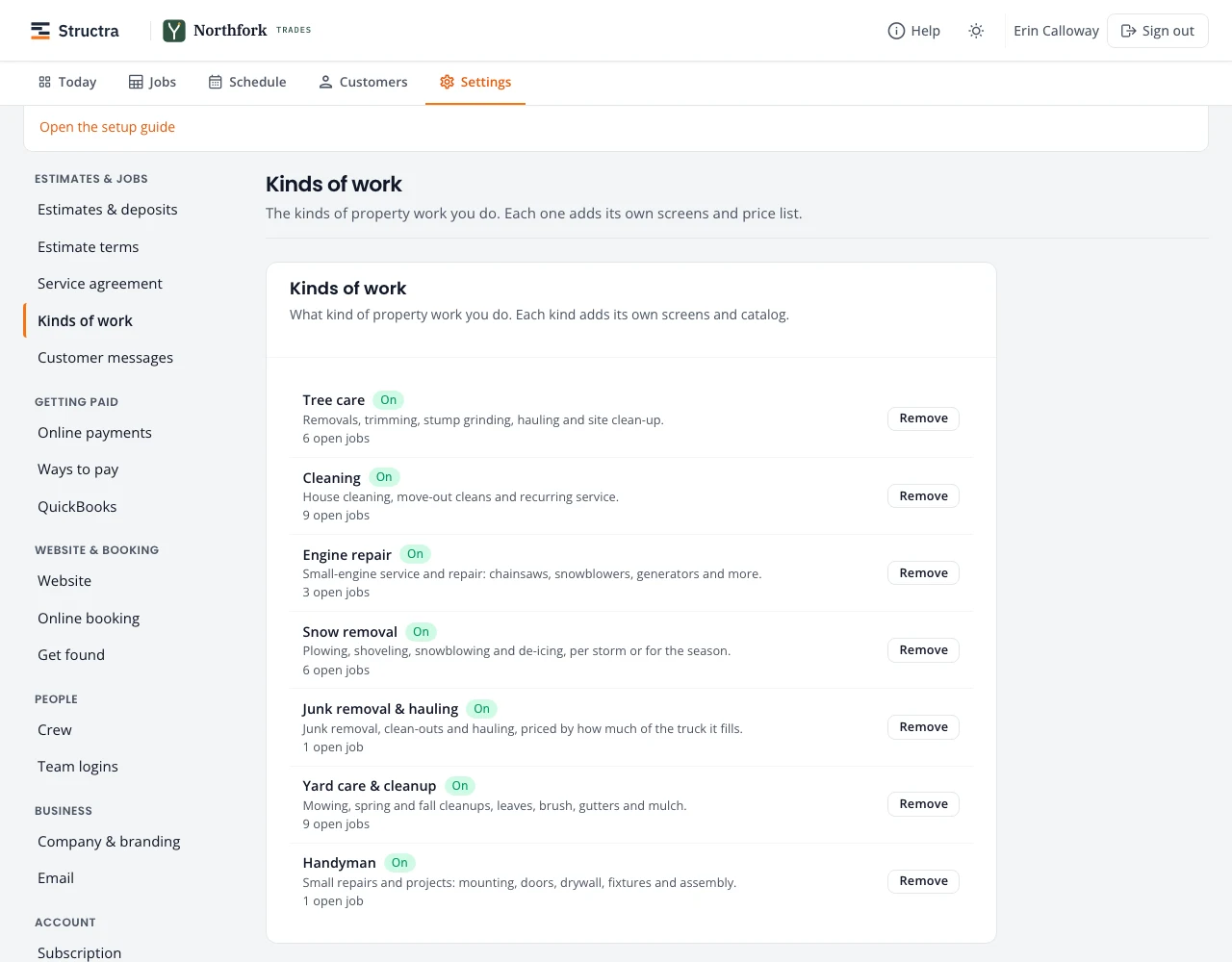
Kinds of work
The trades you do. Add turns one on with its starter price list; Remove takes it off new work (jobs you have keep it). Each kind shows how many open jobs it has.
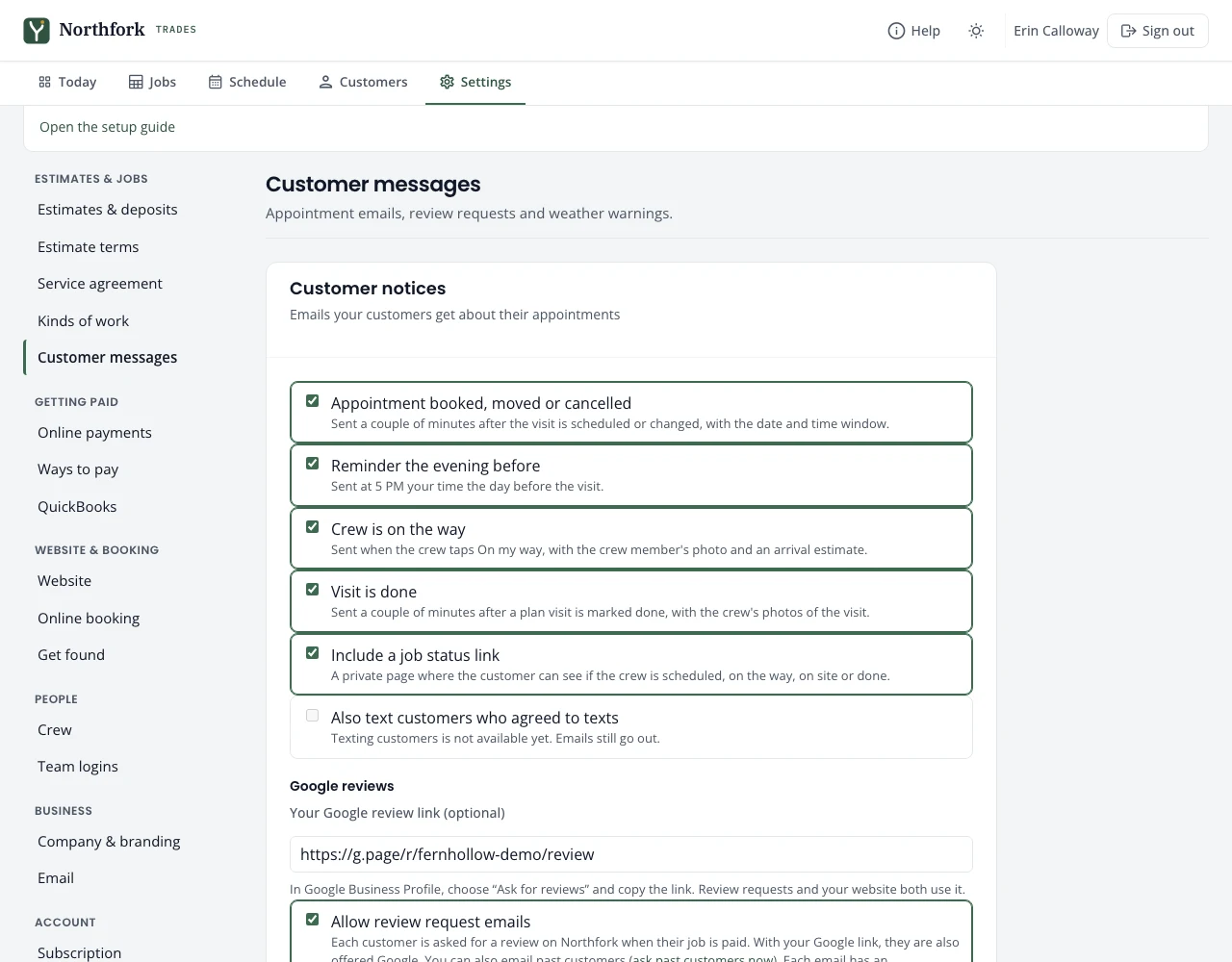
Customer messages
Emails customers get about their appointments:
- Appointment booked, moved or cancelled, a couple of minutes after the change.
- Reminder the evening before, at 5 PM your time.
- Crew is on the way, when the crew taps On my way, with their photo and an arrival estimate.
- Visit is done, a couple of minutes after a recurring or snow route visit is marked Work complete, with up to four of the crew’s photos. This one is on until you switch it off.
- Include a job status link: a private page showing where the crew is.
Below that: your Google review link, Allow review request emails (the verified review request after a job is paid; see Verified reviews), and Ask automatically after each job.
Weather warnings
Switch on Weather can delay our work. Every morning at 9 the forecast is checked for jobs through tomorrow. If storms, heavy rain or snow, strong wind, ice, or extreme cold or heat are forecast while the crew is there, you get an email listing those jobs, and they show on Follow up under Weather reschedules. Tick Also text the customer a heads-up to warn customers who agreed to texts. Snow removal visits are never flagged.
Stuck on something? Email support@northforktrades.com and tell us what you were trying to do.