How it works

From the estimate in the driveway to the paid invoice.

One job in one place: what your customer sees, every step the job goes through, what you have on day one, and where AI is and is not used.

What your customer gets

An estimate with your name on it

This is what lands in your customer's email. Your logo, your prices, your terms. They pick an option and sign at the bottom.

  • Two or three options on one estimate, so the customer chooses the price.
  • Your deposit, payment terms and how long the price holds.
  • The next pages carry your terms and the signature block.

Summit Ridge

Tree & Property, LLC

(303) 555-0142 · summitridgetree.example

Estimate

Estimate #
SR-2611-0418
Date
November 4, 2026
Valid for
30 days

Prepared for

Dana and Chris Whitfield

2150 Upper Bear Creek Rd
Evergreen, CO 80439

Site

Hillside lot, uphill haul. Slash chipped on site. Three beetle-kill lodgepole pines within 20 feet of the house; climber required.

Scope of work

  • Remove beetle-kill lodgepole pine, 60–70 ft× 3
  • Climber for trees near the house× 1
  • Chip slash on site× 1

Option 1 · Recommended

Full removal

Fell all three trees, chip the slash on site and haul the logs away. The site is left raked and clean.

$2,450

Option 2

Fell and leave

Fell all three trees, chip the slash on site, and buck the logs into firewood rounds stacked by the drive.

$1,850

Deposit 30% on signing. Balance due when the work is complete. Price holds for 30 days.

Sample estimate for a fictional company and customer. First page shown.

How a job runs

From the first call to getting paid

The estimate, the signed agreement and the invoice are the same record, so nothing gets retyped and both you and the customer know what was agreed.

  1. 01

    The request comes in

    From the request form on your website, from a neighbor who asked Northfork for someone nearby in your trade, or you type it in after a phone call. It lands on your job board with the name, address and what they need.

  2. 02

    You price it from your own list

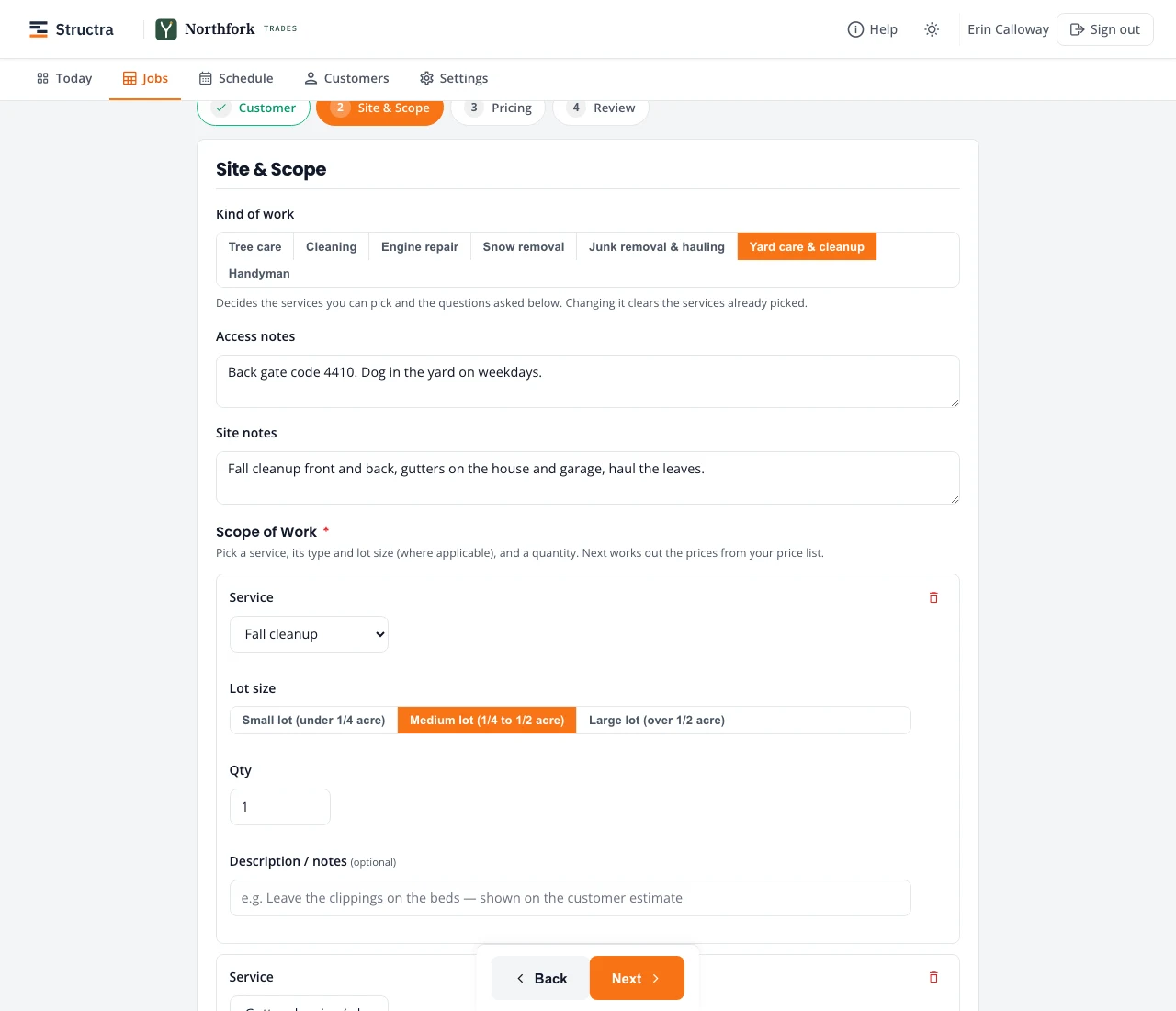
    Pick the services, the condition or difficulty, and how many. Northfork Trades prices it from the rates you set, adds your minimum charge, and builds the estimate.

    Estimate builder: kind of work, access notes, a service with its type, condition and quantity
    Building a yard care estimate. Demo company.
  3. 03

    The customer signs on their phone

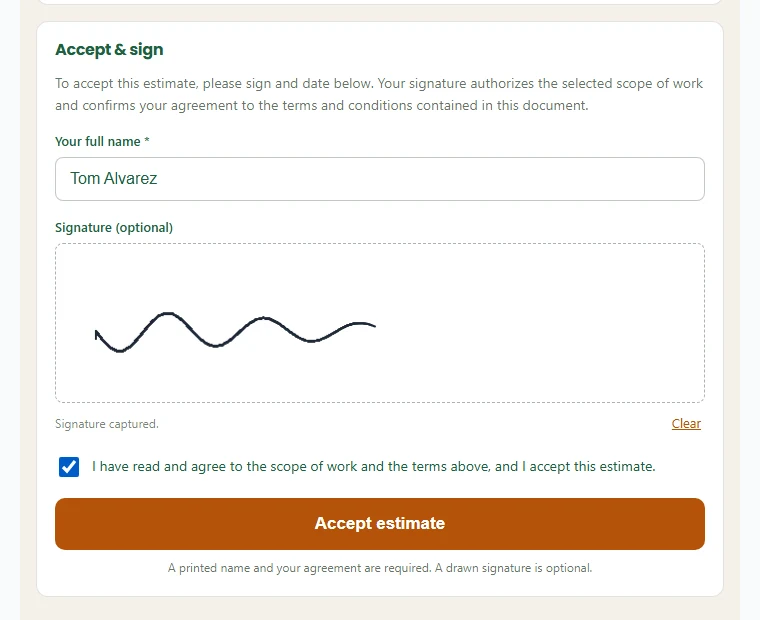
    They get an email with a link, read the estimate, type their name and accept. No app, no account. You both have the signed copy.

    The customer's accept and sign box with their typed name and agreement tick
    What the customer sees at the bottom of the estimate.
  4. 04

    Your customer hears from you

    Booked, the reminder the day before, and on the way with your crew member's name and arrival time, by email and by text for customers who agreed. If the forecast for a scheduled job looks bad, you get an email at 9 AM and the customer gets a plain one-line weather warning.

  5. 05

    The deposit gets paid

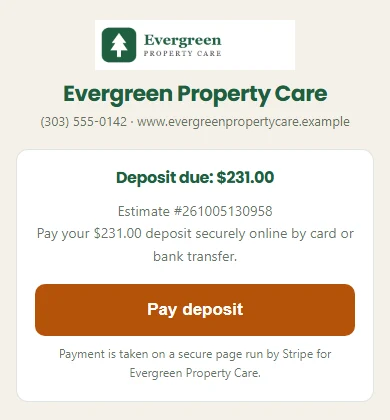
    With online payments on, the customer pays the deposit by card or bank transfer into your own Stripe account. Online payments are being turned on company by company; until then, record the deposit on the job.

    Deposit payment page with the company's logo, the amount due and a Pay deposit button
    The deposit page, in the company's name.
  6. 06

    You do the work and send the invoice

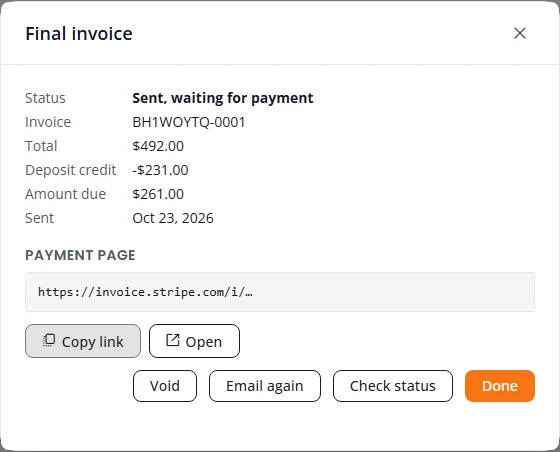
    Schedule the job, put your crew on it, and send the final invoice when it is done. The deposit is already taken off, and you can see who has paid and who has not.

    Final invoice with the total, the deposit credit and the amount due
    Final invoice with the deposit taken off.

Storm days and finished visits

The snow route, and the photos that go out on their own

Two things owners notice first. Both happen while you work, so they are done when the route is.

Snow route

Storm tonight. The route is ready.

Your snow customers are one route. Text them a heads-up the night before, let them reply SKIP, and start the route with one button in the morning.

  1. 01Press Send heads-up for tomorrow. Every customer on the route who agreed to texts gets one text. Reply SKIP and they are left off that day.
  2. 02At 4 PM the day before, customers whose National Weather Service forecast reaches your depth get a text too. Nobody gets both.
  3. 03When it snows, press Storm today. Every driveway gets a visit, in driving order from where you are.
  4. 04A customer texts SKIP on the day? The driver sees Stop dropped at the top of the route and taps Got it. You get a text.
  5. 05Photo, Complete, and directions to the next stop open. Each visit is its own bill: send it from Visits to bill, or press Charge card for a customer with a card on file.

A SKIP after the crew is out is best effort. If the driveway is plowed first, it is billed as usual.
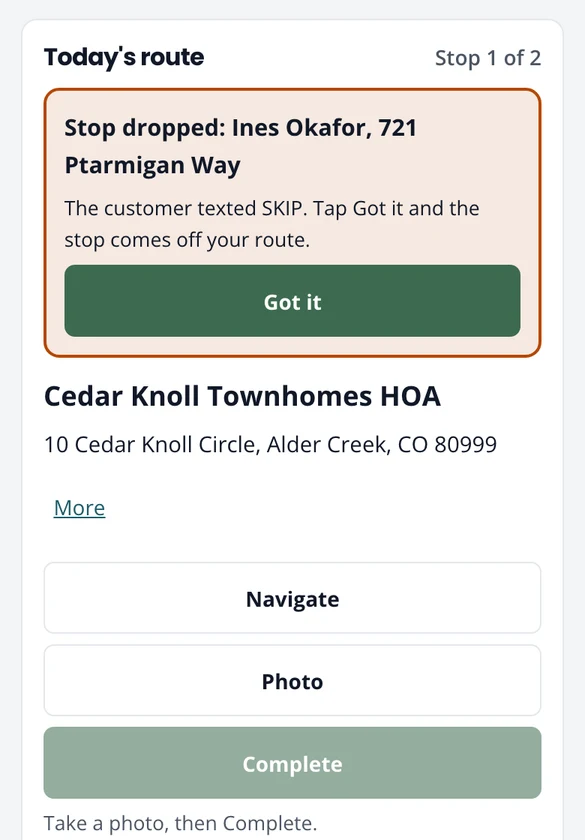
The driver's route on a phone: Stop dropped, Ines Okafor, 721 Ptarmigan Way, with Got it, above the next stop.
A SKIP on the driver's phone. Demo company.
The snow route, step by step

Photos, sent for you

Before and after photos go to the customer.

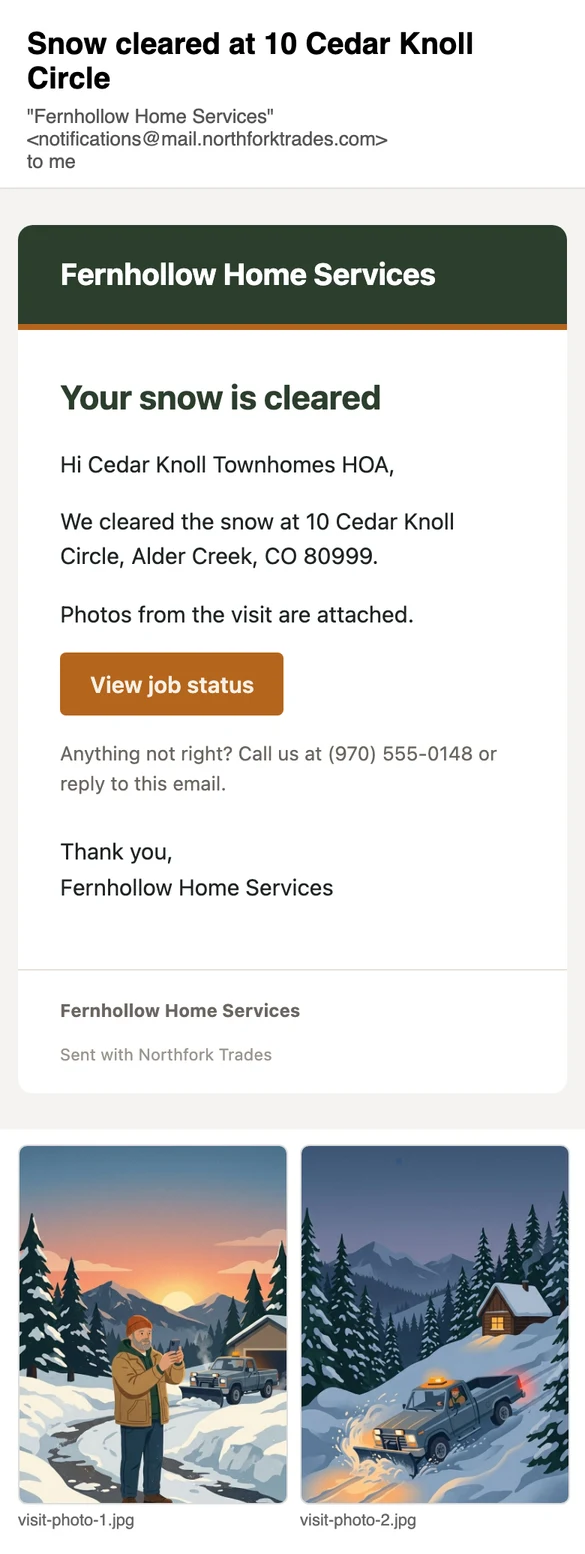
When a visit is done, the customer gets an email from your business with the crew's photos. Nobody has to call and ask whether you came.

  1. 01Take a before photo when you arrive and an after when you finish.
  2. 02Press Work complete.
  3. 03Two minutes later the customer gets “Your visit at” their street “is done”, or “Snow cleared at”, with up to four photos attached.
  4. 04The email has your phone number and a link to the job's status. Replies come to you.

For visits on a recurring schedule or a snow route. On a one-off job the photos stay on the job.

The customer's email: Snow cleared at 10 Cedar Knoll Circle, from Fernhollow Home Services, with two photos attached.
The customer's email. Demo company; the photos are illustrations.
Photos sent to the customer

Ready on day one

What you get when you sign up

You do not need a consultant or a week of training. Setup asks only what it needs, and the guide answers the rest.

A guided setup

Setup walks you through the few things you need first: the kinds of work you do, your business details, your prices and deposit, how you get paid, and your plan. Each kind of work starts with a price list you change to your own rates. The rest can wait until you are ready.

Your company page, live when setup is done

When you finish setup, your company page goes live with your town, your services and your prices. Customers can book or send you a request from it, from their phone.

Help getting found

Step-by-step help to get your business on Google, Facebook and Nextdoor, with your own description and booking links ready to copy.

On your phone

Use it in your phone's browser, or get the Android app on Google Play. On an iPhone, add it to your home screen from Safari. Same account, same jobs.

Every setting in one place

Prices, deposits, estimate terms, customer messages, payments, your website, your crew, team logins and your logo all sit under Settings, grouped by what they are for. Change your mind later and change it there.

A user guide for every screen

The full user guide covers each screen, step by step, with a page for each trade.

Read it before you sign up: the Northfork Trades user guide.

How it is built

Where we use AI, and where we don't

Most of Northfork Trades runs on rules we planned out. They do the same thing every time, so you can predict them and check them. We use AI only at a few points where it saves real time.

Planned rules do the routine work

  • Prices come from your own price list. The same choices give the same price every time.
  • The Follow up list shows who needs a call, a reminder or a nudge to pay, with one suggested next step on each row. You decide whether to take it.
  • When a job is paid, the customer is asked for a review. Once per job.
  • Requests from people nearby go to companies that do that kind of work, ranked by their verified reviews, with a place kept for a newer company.
  • Every morning at 9, your scheduled jobs are checked against the National Weather Service forecast.

AI at two points, with a fallback

Wording the weather warning
When the forecast puts a job at risk, AI writes the one-line warning your customer gets. It may only use the forecast's own facts, like the time and the wind speed. If it cannot, a plain fixed sentence goes out instead. You get an email listing every job at risk.
Working out what kind of work a request is
When someone nearby describes a job in their own words, simple word rules try first. Only when those cannot tell does AI suggest the kind of work. The person asking sees the suggestion and can change it.

AI never sets a price, never picks which company gets a request, and never changes your records. We add it somewhere new only when it clearly saves you time, and you can still see and change what it did.

Want to see it on one of your own jobs?

Email me a job you quoted recently, and I will show you how it looks in Northfork Trades: the estimate, the signed copy and the invoice.