Snow removal
Snow work does not run on set days. You keep a list of customers on your snow route; when it snows you press one button, every customer gets a visit for the day in driving order, and the driver works the route from a phone.
From request to review
- Request. A neighbor books “Plow driveway (per push)” online, asks on the Northfork request page, or calls. See Requests and leads.
- Estimate. Pick per-push services or a whole-season plan, sized by the driveway (small, standard, or large, long or steep).
- Approve and pay. The customer signs online. Most snow work takes no deposit; a season plan can be paid up front.
- Schedule. Put the signed job on your snow route: it repeats with every storm.
- Crew on site. Storm today makes the day’s visits; the driver opens Today’s route on the phone, with a photo at each stop.
- Invoice. Each storm visit is its own job, priced at the per-visit price you set when you put the customer on the route. Visits with a price wait on Follow up under Visits to bill until they are billed. For a season plan, bill the season once and set the per-visit price to $0.
- Review. After a paid visit or season, the customer is asked for a verified review.
What snow removal turns on
- Its own price list, with starter services at suggested prices.
- Prices by driveway size: small (1-car), standard (2-car), and large, long or steep.
- The Every storm (snow route) repeat on Recurring, and the Storm today button.
- Today’s route on the Schedule, built for a phone in a truck.
- Job numbers that start with SN.
Add it at sign-up or under Kinds of work.
Set your prices
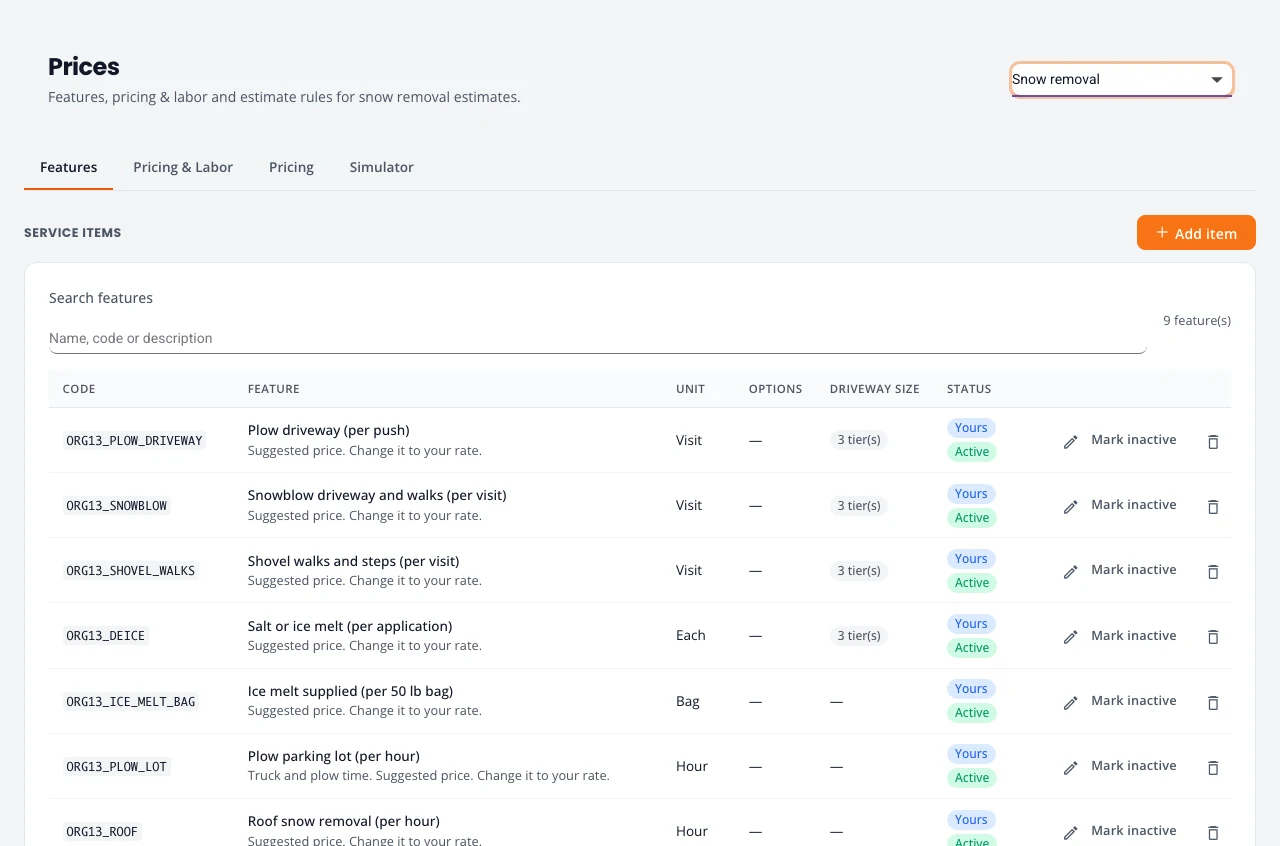
The starter list has per-push and per-visit services (plow a driveway, snowblow a driveway and walks, shovel walks and steps, salt or ice melt), hourly work (plow a parking lot, roof snow removal), ice melt by the bag, and whole-season plans for a driveway or for walks and steps. Each says “Suggested price. Change it to your rate.”
Put customers on your snow route
- Quote and get the estimate signed as usual.
- On Jobs, open the signed job’s row menu (the three dots) and choose Make recurring.
- Under Repeats, choose Every storm (snow route). Set the usual start time and the date they join the route.
- Choose when it ends: never, on a date (the end of the season), or after a number of visits for a plan with a set number of pushes. Save.
The customer shows on Recurring as “Every storm, when you start the route”. See Make a job recurring.
The night before a storm
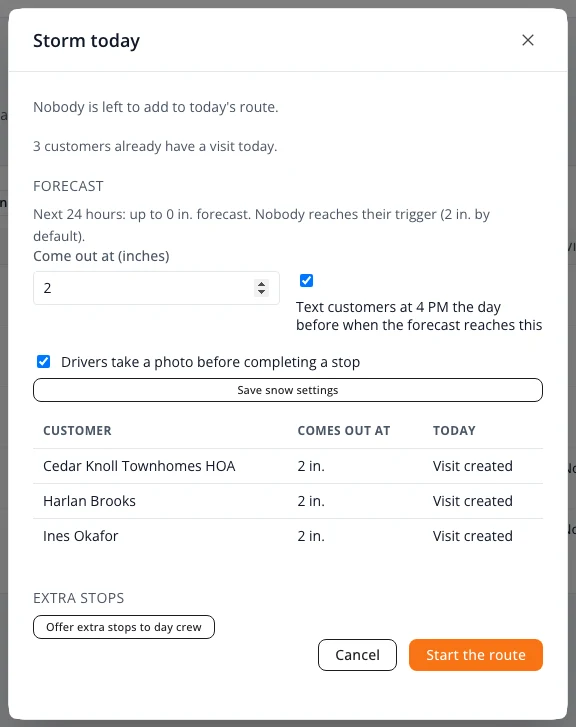
Northfork Trades watches the National Weather Service forecast for your customers. On Recurring, press Storm today and set:
- Come out at (inches): how much snow brings you out (2 inches to start).
- Text customers at 4 PM the day before when the forecast reaches this: a warning text to customers who agreed to texts, saying how much is forecast and that they can reply SKIP.
- Drivers take a photo before completing a stop.
Press Save snow settings. The forecast only sends the warning. It never starts the route; you decide when to go out.
Send a heads-up text
Know it is coming before the forecast text goes? Send the heads-up yourself. It sits in the Storm today window under the forecast, and on the Snow route card at the top of Schedule.
- Pick the Day (tomorrow to start).
- Press Send heads-up for tomorrow. Every customer on the snow route who agreed to texts gets: “Snow’s coming Tue Nov 17. Fernhollow Home Services will plow your driveway. Don’t need it this time? Reply SKIP by 5 AM and we’ll leave you off.”
- The button then reads Sent with the time. One heads-up per day. A customer who already had the 4 PM forecast text for that day is not texted twice.
A SKIP reply leaves that customer off that one day only. They stay on the route for the next storm.
When it snows
- On Recurring, press Storm today (the top of Schedule offers it too on a snow day).
- Read the list: each customer on the route and what happens to them today.
- Leave texting ticked to tell customers who agreed to texts that their service has started.
- Short-handed? Offer extra stops to day crew texts the job to your contractors.
- Press Start the route.
A visit is made for each customer for today and they are put in driving order, starting from where the phone is when you press Start. Pressing Storm today again on the same day adds nothing new; customers who skipped, or who used every visit in their plan, are left off.
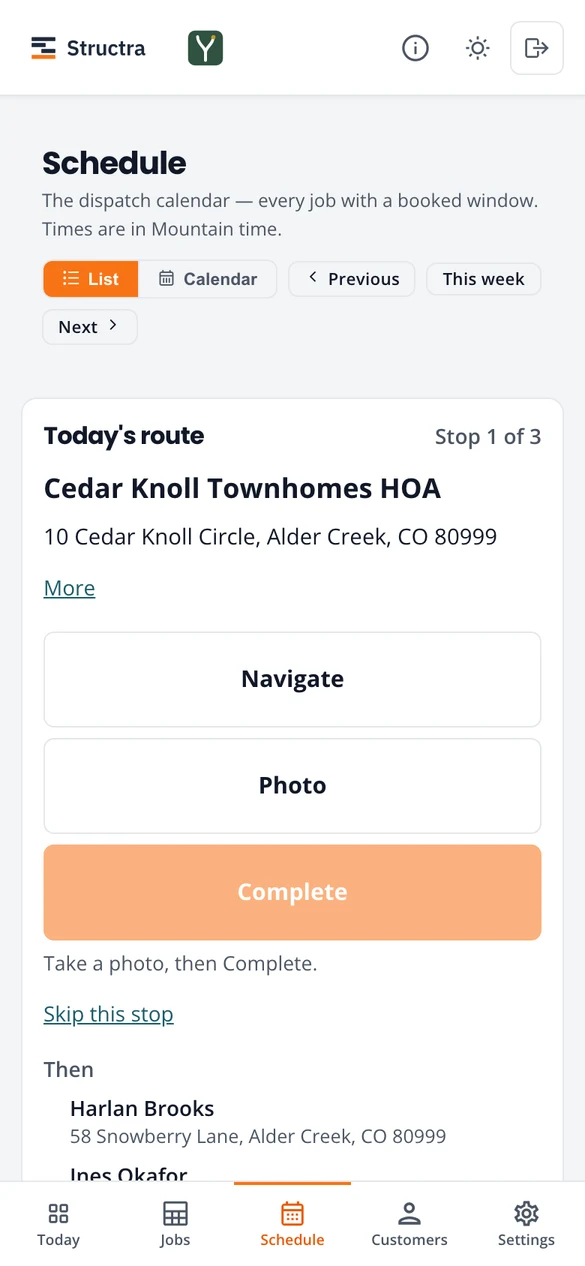
The route on the driver's phone
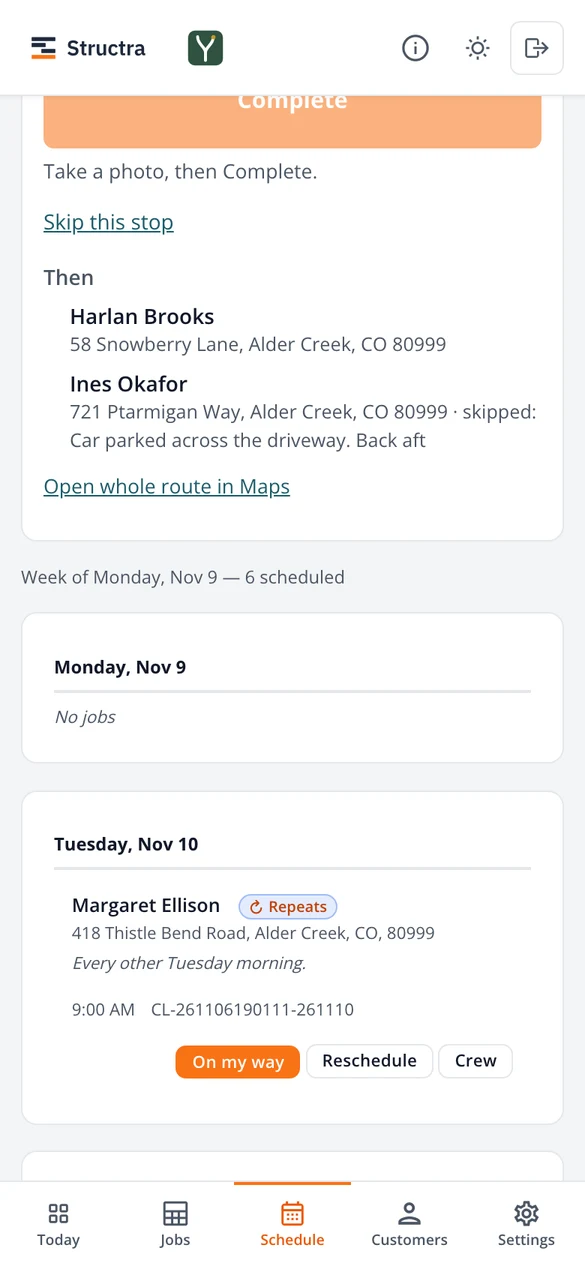
The driver opens Schedule. Today’s route shows one stop at a time, with what is next below:
- Navigate opens the address in the phone’s maps app and sends that customer your Crew is on the way message, if you switched it on. Open whole route in Maps loads every stop.
- Photo of the cleared driveway, then Complete. With the photo rule on, Complete waits for the photo.
- After Complete, directions to the next stop open on their own and the next customer gets the on the way message. If the phone blocks the maps window, the app says “Next stop is up: tap Navigate”.
- Skip this stop with a reason, such as a car parked across the driveway. The reason shows in the list and on the job.
After each stop
About two minutes after a stop is completed, the customer gets an email: “Snow cleared at” their street, with up to four of the driver’s newest photos attached. Customers who agreed to texts also get a text, if you switched on customer texts. The two minutes give a photo still sending from the phone time to land.
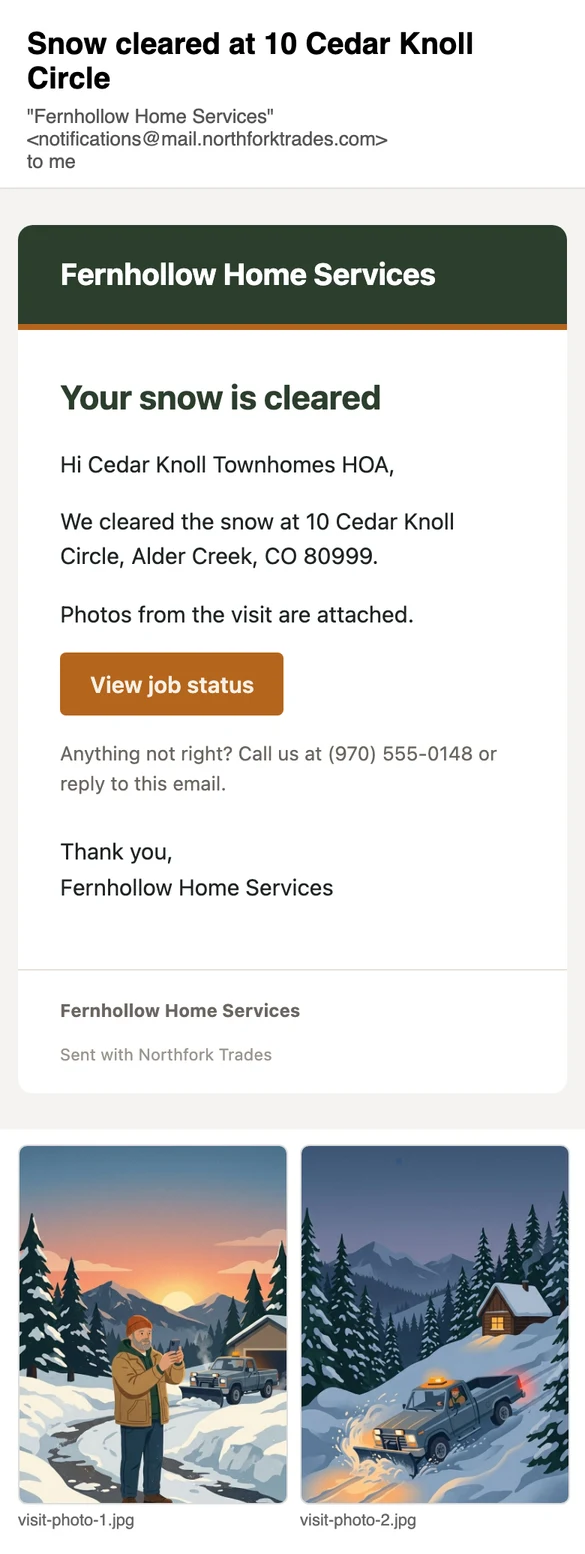
The photo is the proof. Nobody has to call and ask whether you came. See Photos sent to the customer.
This message is on unless you switch off Visit is done under Customer messages.
Bill the storm visits
A finished visit with a price that has no invoice yet shows on Follow up under Visits to bill, with Send invoice. It stays there until it is billed. Visits on a season plan priced at $0 never show there.
If the customer has a card on file, the row offers Charge card instead, and Charge all charges the whole list after showing you the total. See Card on file for plan visits.
A customer who would rather pay the same amount every month can go on a budget plan: you set the visits you expect this winter, they pay monthly from their card, each storm visit is paid from that money, and you settle up in the spring. See Budget plans.
When a customer replies SKIP
Customers who agreed to texts can reply SKIP to any snow text from you. What happens depends on when:
- To the 4 PM forecast text or your heads-up: they are left off when you start the route for that day, and get a text back: “Got it, we’ll leave you off” with the date.
- On the day, before the crew sets out: the stop is not taken off straight away. The driver and you are told at once, and the stop comes off when one of you confirms it. See Stop dropped.
- After the crew is out: the drop is marked late and handled as best we can. See A SKIP after the crew is out.
- After the driveway is already cleared: nothing changes, and the customer is told it was already cleared today.
Everyone who skipped is listed under Skipped by customer in the Storm today window and on the driver’s route, with the time they texted. A skipped visit is not charged.
Stop dropped: the driver taps Got it
When a customer replies SKIP on the day:
- The customer gets a text back: “Got it, we’ve told the crew to skip you today. We’ll text you when they confirm.”
- A Stop dropped card shows at the top of the driver’s route with the customer’s name and street. The route checks for new drops every 30 seconds while the phone has signal, and when the app is opened again.
- The driver taps Got it. Or you press Confirm next to the customer under Skipped by customer in the Storm today window. Whichever comes first counts.
- The visit is cancelled, the stop comes off the route, and the customer gets a text: “Confirmed: your crew knows to skip your driveway today”, with your company name.
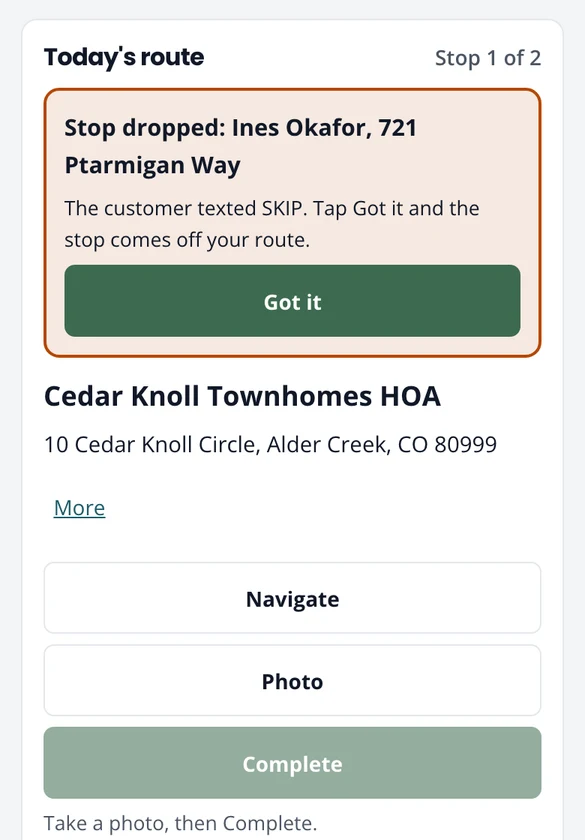
Under Skipped by customer, a drop shows Waiting for the crew until someone confirms it, then who confirmed it and when.
A SKIP after the crew is out
Once the driver has started the route (a stop is on the way, on site or done), a SKIP is a late request. Up here a driver can lose signal, so it is best effort:
- The customer is told the crew is already out, that you will try to reach them, and that it cannot be promised.
- The driver’s card is marked LATE: skip it if it is not plowed yet.
- If the driver plows it before anyone taps Got it, the drop closes as Too late — plowed and the visit is billed as usual.
Texts to you when a stop drops
Every drop texts you: “Stop dropped: Harlan Brooks, 58 Snowberry Lane, skipped today’s plow by text.” A late one starts with LATE. You also get an email and a notice in the app.
- The setting is Text me when a customer drops a stop, at the bottom of the Storm today window. It is on unless you turn it off, and it needs a mobile number on your profile.
- If nobody confirms a drop in 15 minutes, you get one more text: “Unconfirmed drop”. Open the route and press Confirm.
- The crew lead on the visit is told in the app, and by text if they agreed to texts. Crew texts carry the customer’s name and street only, never their phone or email.
Stuck on something? Email support@northforktrades.com and tell us what you were trying to do.